Bulk Assigner
Dealing with user assignments one-by-one is tedious. The Bulk Assigner module allows you to comprehensively manage multiple permission and membership types across one or more users in a single Matrix view.
There are multiple ways to open this tool.
- Click on Modules Menu
-> Bulk Assigner - In the User Manager, select one or more users, right-click and select
Bulk Assign. Selected users will be added as Bulk Assign users.
Overview
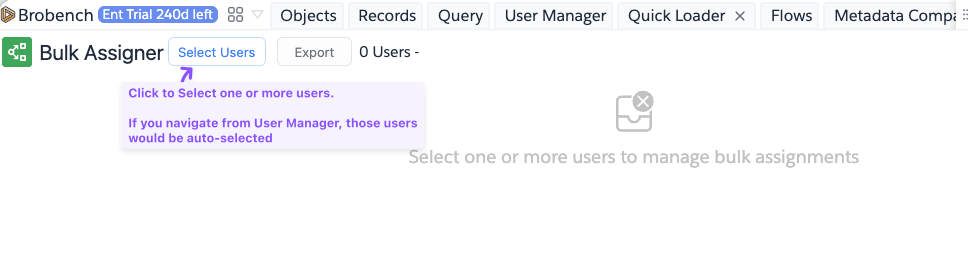
When you load the Bulk Assigner for the first time, you will see an empty state message. Click Select Users to pick one or more users.
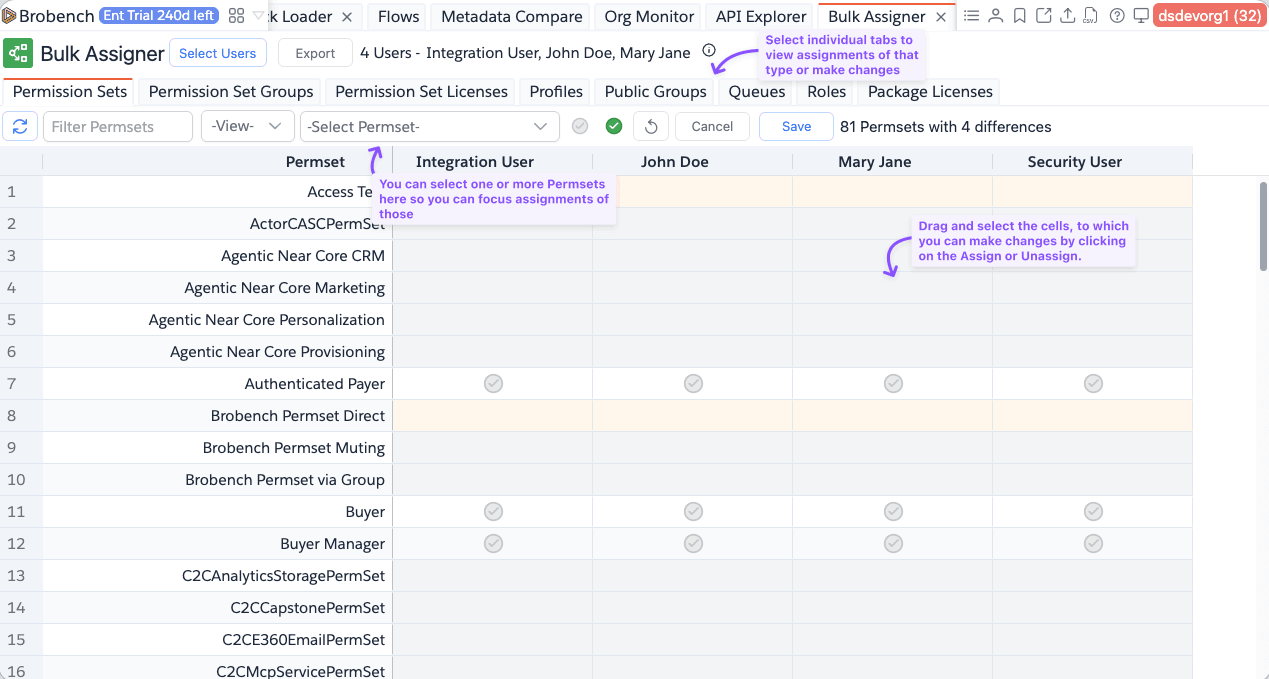
Once you select users, or if you navigated from the User Manager, the app shows the page below.
Selecting Target Users
To manage user assignments, click Select Users from the top toolbar. This launches a User Selector dialog allowing you to search and pick a set of target users.
- You can only select active users
- Any unsaved modifications in the active pane will trigger a warning dialog if you try to change the selected user group. Proceeding will overwrite those changes.
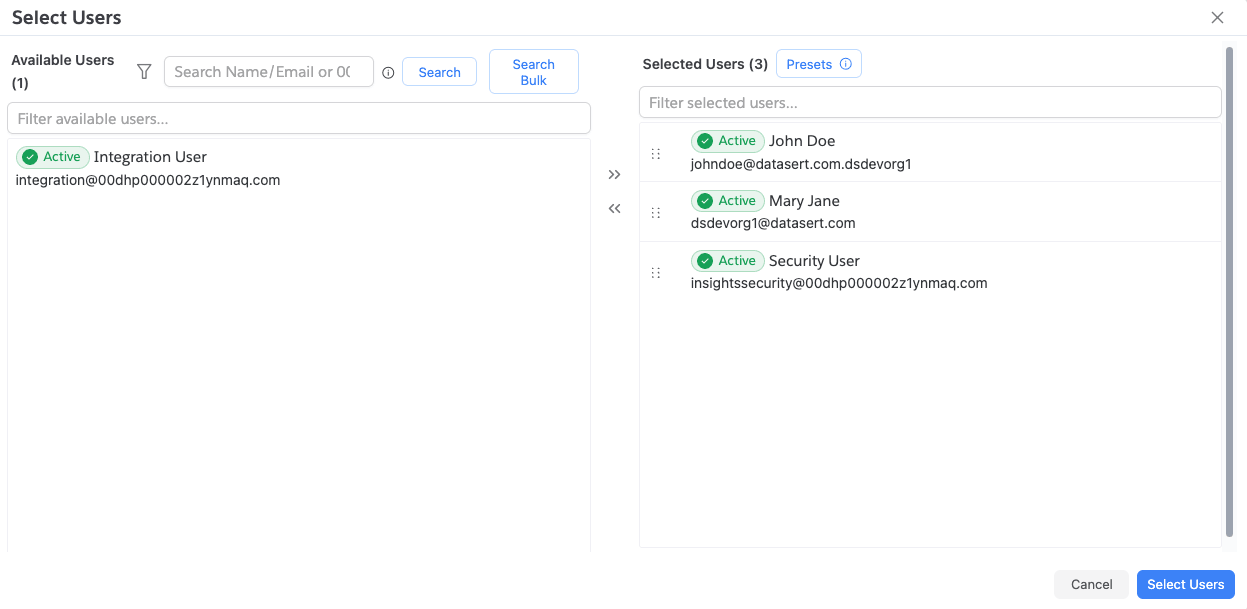
Once you select users, a badge strip shows the names and count of the currently selected users.
Features & Usage
Supported Assignment Types
The Bulk Assigner leverages a dynamic tab interface mapped to distinct Salesforce setup entities (types). Each tab renders the entire user grid for that single entity type:
- Permsets
- Permset Groups
- Permset Licenses
- Profiles
- Public Groups
- Queues
- Roles
- Package Licenses
Grid Navigation & Filtering
The matrix provides robust filtering via the Top Toolbar dropdowns:
- View Filter: Filter the active rows by their assignment state:
Assigned: Shows only rows currently assigned to at least one user.Differences: Shows rows where the assignment varies across the selected users.Same: Shows rows where assignments are identical across all users.Updated: Shows only rows with pending un-saved changes.Errors: Shows rows that encountered an API error upon the last save.
- Resource Filter: Quickly type and select specific resources (e.g. searching for a specific Permset Name) to isolate them within the grid.
Managing Assignments
- Review Assignments: Toggle between the tabs. A blue checkmark cell indicates the user is assigned to that setup entity. To view the underlying assignment ID or relationship API Name, simply hover your cursor over the given cell to expose a tooltip popover.
- Toggle Individual Assignments: Click any available checkmark cell to toggle the assignment status in memory. The row will be highlighted to indicate an unsaved local edit.
- Mass Assignments:
- Click the globally accessible
Assign(Green Check) orUnassign(Gray Circle) icons in the Toolbar to apply that operation to the entirety of your active row selection. - Right-click anywhere in the Matrix to open the Context Menu for powerful mass operations:
Assign to Selection/Unassign from SelectionAssign/Unassign Selected <Resources> to All UsersAssign/Unassign All <Resources> to Selected Users
- Click the globally accessible
Copy Assignments
Copy one user's full assignment profile to your other selected users.
- Right-click the matrix and select Copy Assignments.
- Select the
User to Copy Fromand theUsers to Copy To. - Toggle Match Assignments:
- When enabled, any assignments on the Target users that do not exist on the Source user will be scheduled for removal (unassigned).
- When disabled, Source user assignments are incrementally added to the Target users, preserving their existing unique permissions.
- Click
Okto map the changes to the Datagrid (pending Save).
Reverting Changes
Made a mistake? Use the Undo (Arrow) popup menu or Cancel button from the Top Toolbar to discard unsaved row
adjustments.
Revert Selected: Discards changes only for the highlighted grid rows.Revert All: Discards all pending changes on the active tab and resets the matrix to its current saved state.
Save Operations
Click Save when you are ready to apply your changes to Salesforce. The save runs in batched background API calls and
keeps you updated on progress. The Save button shows the count of pending changes in parentheses — e.g. Save (4).
Errors & Warnings
If a cell is marked as "Unassignable" (e.g. grayed-out or blocked), hovering over it will display a detailed root-cause error describing why that assignment is prohibited via the Salesforce API (like missing compatible license checks or insufficient rights).
Export Results
Need to build an audit report or manually backup existing permissions? Use the Export button in the top toolbar to generate a comprehensive cross-tab report of user assignments.
- Click on
Exportfrom the Top Toolbar. - Select whether you'd like an
ExcelorCSVoutput. - Check off which Tab Matrix logic you want to extract (e.g. Permsets, Queues, Profiles). Selecting
Allwill download every selected user's matrix as separate worksheets within an Excel workbook or export them as multiple standalone CSV files containing fields for:- User Name / Username / User Id
- Resource Name / Resource Id
- Assigned (true/false)
- Unassignable triggers