OAuth Set Up
This page walks you through the basics of how to connect to Brobench using OAuth.
Salesforce Security Changes
Starting in September 2025, Salesforce requires that all third-party connected apps are to be installed in your org for any new authorizations.
This means, any time you want to use OAuth to connect Brobench with Salesforce, it will not succeed unless Brobench Connected App is installed.
Installation Requirements
Users will need one of the following to connect Brobench to your Org
-
Brobench OAuth Connected App is installed in the org (recommended)
- An admin installs Brobench Connected App
- Configures the Connected App to grant you access to use Brobench
-
User has
Approve Uninstalled Connected Appspermission- Allows connection without installation. It should be limited to admin-users or a selective set of non-admin users
Install Connected App
Replace the your_domain in below url with your Salesforce Org Domain and enter the resulting URL in the browser.
<your_domain>/identity/app/AppInstallApprovalPage.apexp?app_id=0Ci5e000000wmph&app_org_id=00D5e000000JSnU
For example if your Org URL is https://datasert.my.salesforce.com then full url is
https://datasert.my.salesforce.com/identity/app/AppInstallApprovalPage.apexp?app_id=0Ci5e000000wmph&app_org_id=00D5e000000JSnU
Enter the full url in the browser. Salesforce should prompt to install the Connected App. Click Install.
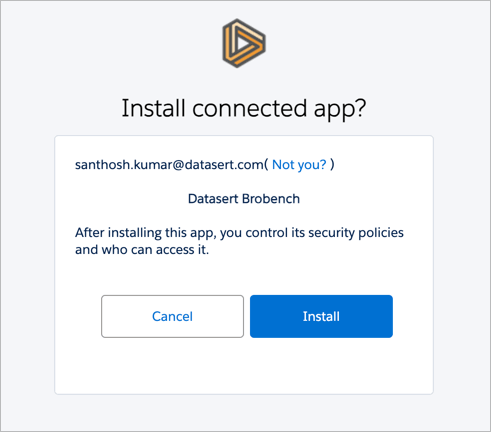
If you get the below error, app is already installed, and you can consider this step as done.

Managing Permissions
After installation, you can:
- Configure session policies
- Control which profiles/permission sets have access
- Set refresh token policies
Permitted Users
If you want to limit which users are allowed to connect to Brobench, you can set the Permitted Users policy to Admin approved users are pre-authorized.
Then, assign the connected app to specific Profiles or Permission Sets. Assigning profiles and permission sets configuration appears on the previous page after enabling this option.
Troubleshooting
"This app hasn't been approved for use in this organization"
This error means Brobench needs to be installed. Contact your Salesforce administrator to install the Brobench Connected App from the above link.
"Failed to complete authorization"
This typically indicates permission issues. Verify that:
- Brobench is installed in your org
- Your profile/permission set has access to the connected app
- API Access Control settings aren't blocking the connection