Territory Manager
Territory Manager gives you a unified view of your Salesforce Enterprise Territory Management setup. You can browse territory models and their hierarchy, inspect assignment rules, manage territory memberships, and move territories around — all without leaving Brobench.
This tool can be accessed via Tools Menu -> Territory Manager. See Tools Menu for more
info.
Enterprise Territory Management must be enabled in your Salesforce org. If it is not enabled, the tool will show a message with a link to the Salesforce help article on how to enable it.
Here is overall layout of the Territory Manager.
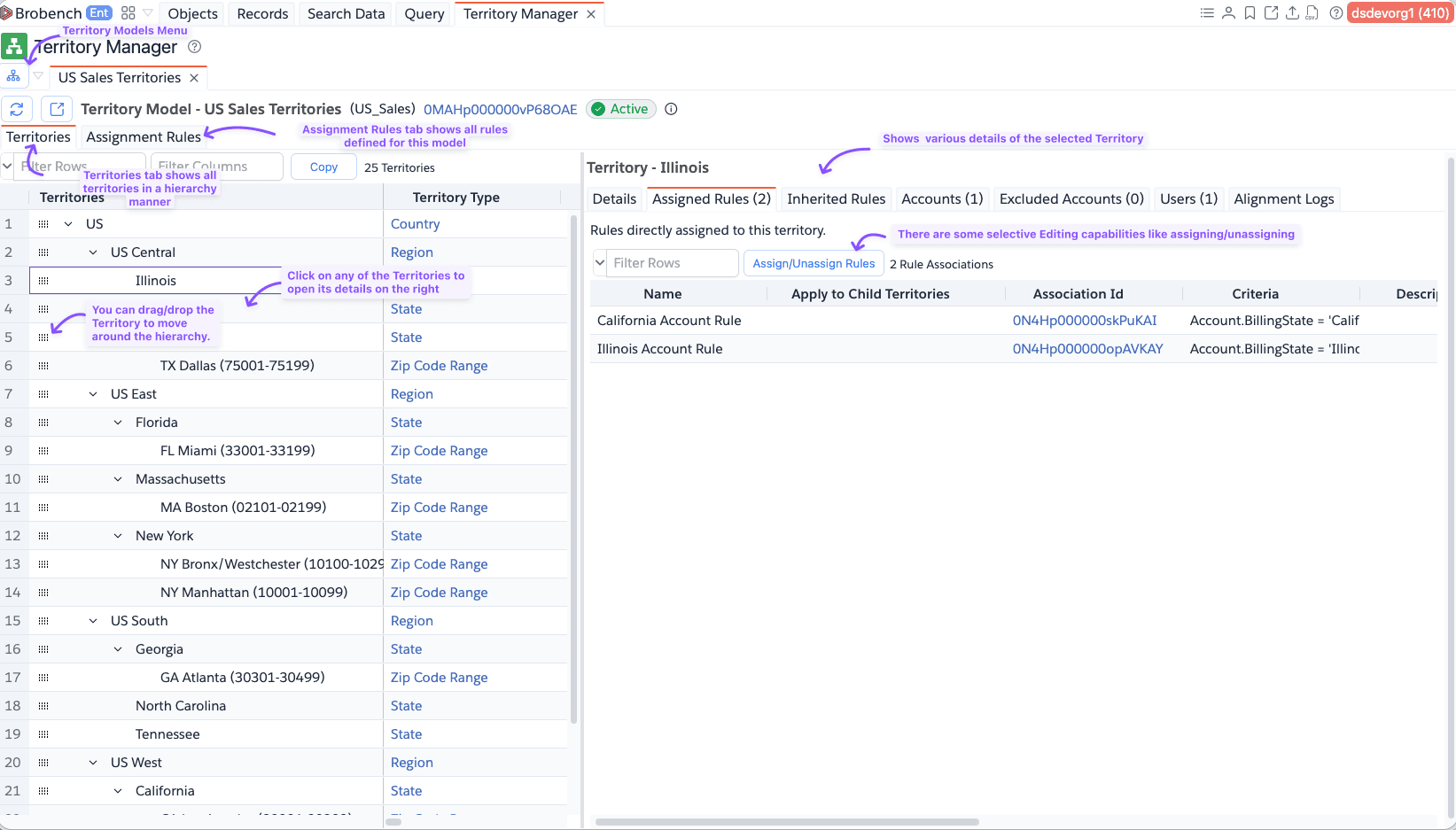
When you open the tool, select a territory model from the sitemap icon menu in the toolbar. If your org has only one model, it opens automatically.
Each model opens in its own tab. The tab shows the model name, developer name, status (Active/Inactive), and a summary of key metadata in an info popover.
Explore the core features of Territory Manager:
- Territory Details – Inspect rules, accounts, users, and alignment logs for a territory.
- Assignment Rules – View all assignment rules for a model and the territories they cover.
Territory Hierarchy
The Territories tab shows all territories in the selected model as a collapsible tree. Selecting a territory opens its detail panel on the right side.
Hierarchy Tree
The tree displays territories in parent–child order. Each row shows:
| Column | Description |
|---|---|
| Territories | Territory name (tree column) |
| Territory Type | The Territory2Type label |
| Rules | Number of assignment rules directly assigned to this territory |
| Accounts | Number of accounts assigned to this territory |
| Users | Number of users assigned to this territory |
| Hierarchy Users | Total users across this territory and all descendants |
| Hierarchy Accounts | Total accounts across this territory and all descendants |
| Developer Name, Description, Access Levels, Forecast User | Additional metadata columns |
You can filter which columns are visible using the column search box, and reorder or resize columns as with any datagrid.
Territory Context Menu
Right-click any territory row to access these actions:
| Action | Description |
|---|---|
| Assign/Unassign Rules | Open the dialog to manage assignment rules for this territory. Available only when the model is Active. |
| Assign/Unassign Accounts | Open the dialog to manually add or remove accounts. Available only when the model is Active. |
| Edit | Edit the territory name, description, access levels, and other fields. |
| View in UI | Open the territory record in Salesforce. |
Export Hierarchy
Click Export → Copy Hierarchy in the toolbar to copy the territory hierarchy as a tree to your clipboard. The tree output format looks like this:
Global
└── North America
    ├── East Coast
    │   ├── New York
    │   └── New England
    └── West Coast
        ├── California
        └── Pacific Northwest