Metadata Studio
Metadata Studio is a lightweight editor for Salesforce metadata components. It lets you browse metadata, open component files in tabs, make changes, save them to the connected org, run Apex, view debug logs, and more.
This feature is available in Professional edition and above

How to Launch
Open App Menu -> Tools -> Metadata Studio.
or click on the Metadata Studio icon in the Global Actions area.

Overview
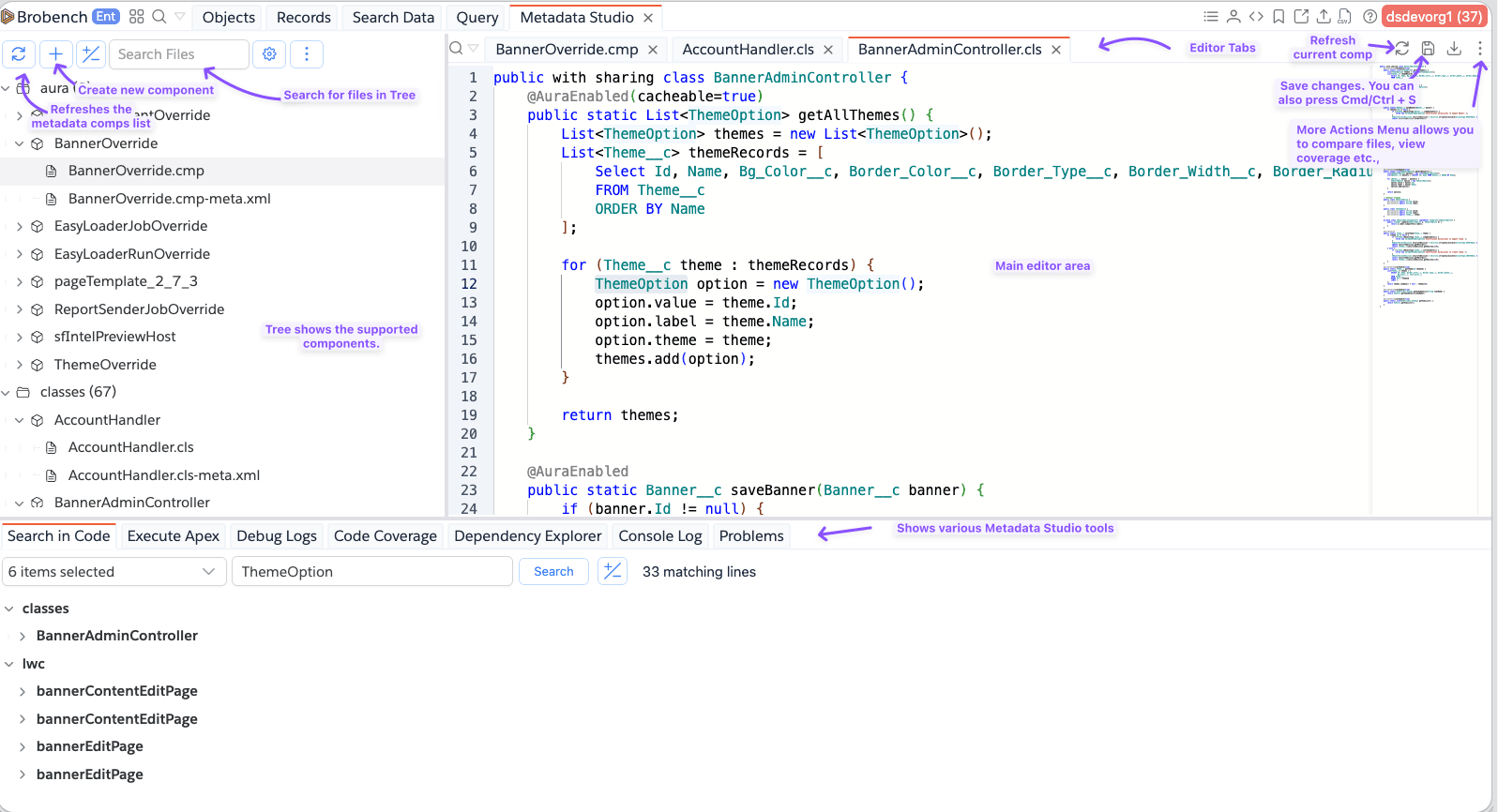
Here is what the Metadata Studio looks like.
Metadata Components Tree
On left side, it shows the Metadata Components tree. Tree shows Component Types, Components List undernath and individual component files below that.
Use the toolbar to:
- Refresh the metadata list. The tooltip shows when the list was last refreshed.
- Create a metadata component.
- Search within loaded component files (Search Files).
- Expand or collapse the entire tree.
- Filter and sort the list, and toggle Modified Info, from the options popover.
- Open More Actions to view the full components list.
Metadata types shown
Metadata Studio always shows Apex Classes, Lightning Web Components, Apex Triggers, Aura Components, Visualforce Pages, and Visualforce Components. You can add other metadata types to the tree from Metadata Studio's settings.
Filter and sort options
Click the options (gear) icon to configure:
- Type: Org Local (default) shows components that are not part of a managed package; Packaged shows components that belong to an installed package.
- Sort By: Name or Last Modified.
- Show Modified Info: when enabled, each component shows its relative last-modified time and the name of the user who last modified it directly in the tree.

Refreshing
Click the refresh icon to reload the metadata list from the org. Cached metadata lists older than 24 hours are also refreshed automatically in the background when Metadata Studio loads, without blocking the UI. See Refreshing Metadata for how this fits in with Brobench's overall caching behavior.
Viewing the full components list
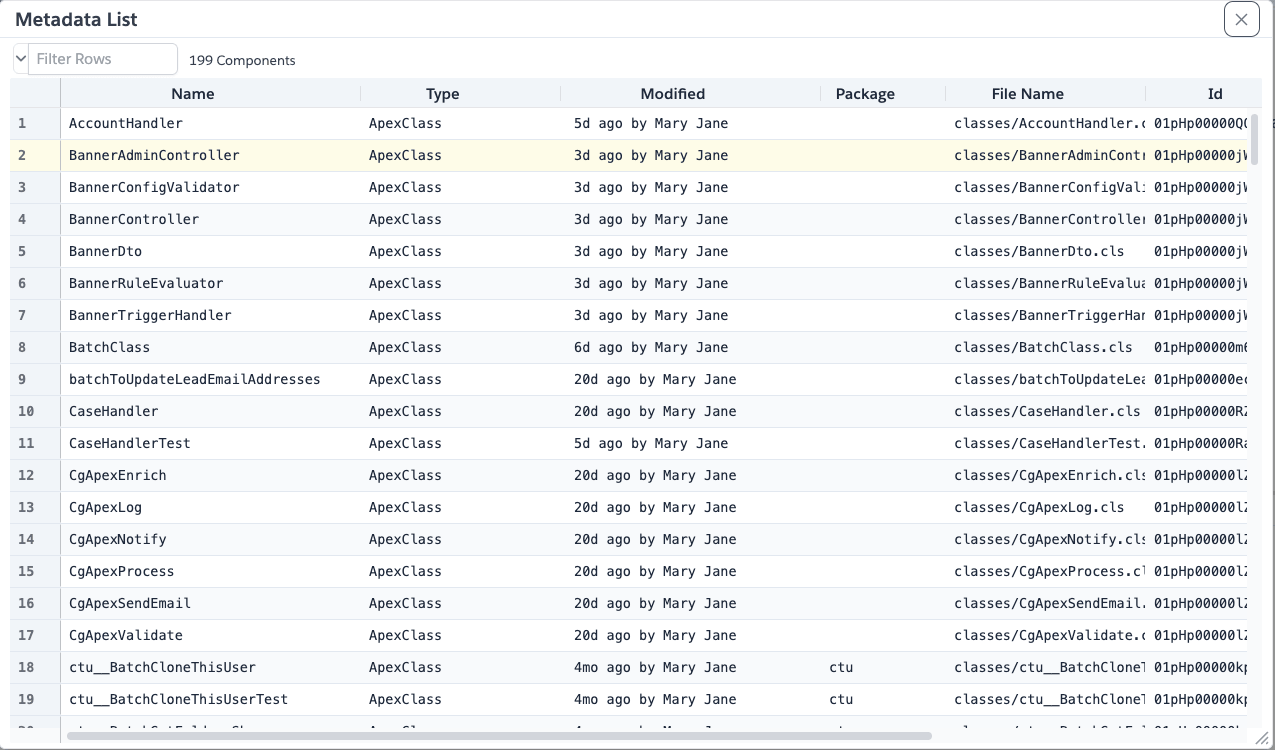
Open More Actions (⋮) next to the search box and choose View Components List to see every loaded component in a sortable, filterable grid, including its Name, Type, Modified date/user, Package, File Name, Id, Created Date, and Created By.
Component details and status
- Hover the info icon next to a component to see its type, full name, Id, and created/modified details.
- Components with unsaved changes show an orange dot next to their name in the tree.

Filtering Files
You can enter any search keyword in the Tree Filter input to show the components matching that search term.

Open Resource
Use the search icon in the file tabs toolbar (or the search box above the tree) to open Open Resource, a searchable
dialog listing all cached metadata components plus recently opened items. This dialog is also reachable anywhere in
Brobench with Cmd/Ctrl+Shift+K.
Create a Component
Click the + icon above the metadata tree, or the + icon next to a metadata type's group node to preselect that type, then choose a metadata type and fill in the required fields.
Metadata Studio supports creating Apex Classes, Apex Triggers, Aura Definition Bundles, and Lightning Web Components.

Edit and Save
Open a component, select the file to edit, then click Save in the component toolbar, or press Cmd/Ctrl+S. Save is
disabled with a "No changes to save" message when nothing in the open component has changed.
- Tabs stay open as you browse; opening a component opens its primary file (s) automatically (for example, an LWC opens
its
.jsand.htmlfiles; Aura opens the bundle definition and its controller). - Files with unsaved changes are marked in their tab; closing a dirty tab or refreshing a component with unsaved changes prompts you to discard or cancel.
- Editor tabs support syntax highlighting for Apex, JavaScript, HTML, CSS, and XML, a code minimap, word-wrap, and jump-to-line when opened from a search result.
- Use the Download toolbar icon to save the active file's contents to your computer.
- Use the Refresh toolbar icon to reload the open component from the org, discarding any unsaved local edits.
Metadata Studio does not allow changes on read-only connections.
Compare and inspect
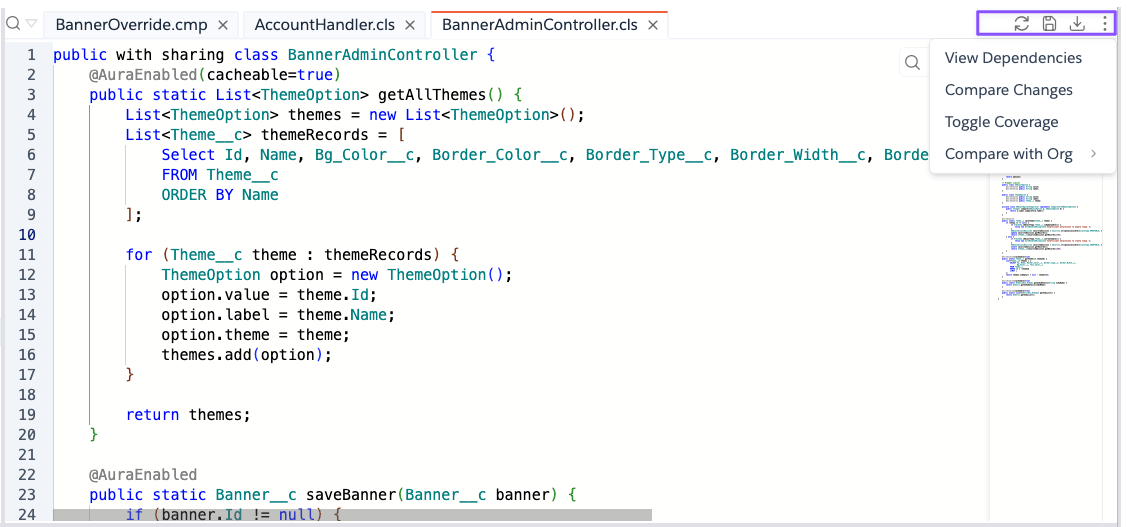
From the tree's per-component menu or the file tabs' More Actions menu:
- Compare with Org — opens a side-by-side diff of the component against the same component in another connection in the same company/org group.
- Compare Changes — diffs your unsaved editor changes against the last content fetched from the org, per open file. Shows a message if there are no differences.
- View Dependencies — opens the Dependency Explorer for the component (the component must already exist in the org, i.e. have an Id).
- Toggle Coverage (Apex Classes and Triggers only) — highlights covered and uncovered lines in the editor gutter using the org's code coverage data; toggle again to clear the highlight.
Delete a Component
Open the component's actions menu in the metadata tree and choose Delete. Confirm the prompt to permanently delete the component from the connected org. Deleting closes any open tabs for that component.
Delete is blocked on read-only connections.
Deleting a metadata component cannot be undone.
Run Tests
When an open Apex Class file is a test class, a Run Tests icon appears in the file toolbar. Running tests reports pass/fail counts, and any failures are shown at the relevant line in the editor and logged to the Console Log tab.
Studio Tools
The bottom console panel in Metadata Studio includes several Code-related tabs, in addition to Search in Code and Console Log.
Search in Code
Open the Search in Code tab in the bottom console panel to search across Apex Classes, Pages, Components, Aura Components, Lightning Web Components, and Triggers. Filter by metadata type, then click a matching line to open that file at the matching location.

Execute Apex
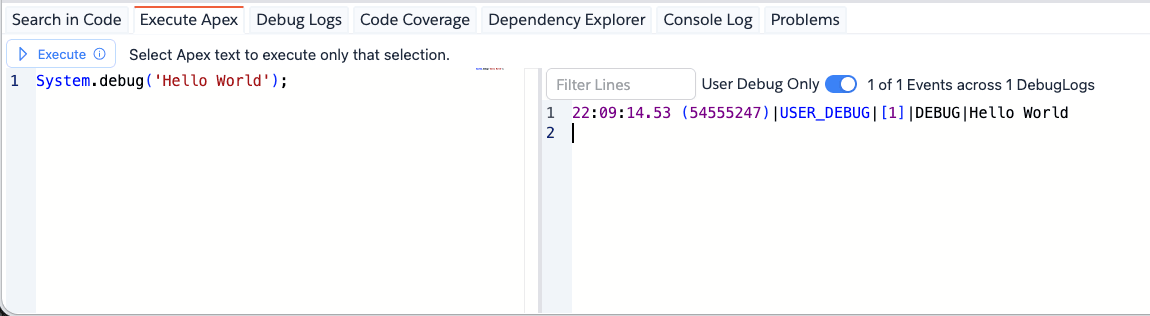
Open the Apex tab to write and run anonymous Apex against the connected org. Select part of your script to run only that selection, or run the whole script if nothing is selected. Your script is saved automatically and restored the next time you open the tab.
On success, the resulting debug log is shown inline. Compile errors show the line and column of the problem; runtime errors show the exception message and stack trace.
Debug Logs
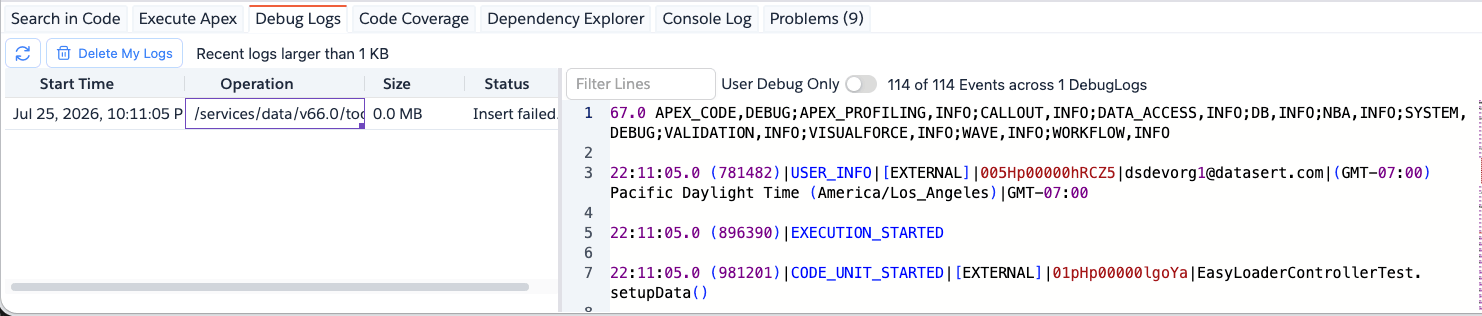
Open the Debug Logs tab to see your recent debug logs larger than 1 KB, with Start Time, Operation, Size, and Status columns. Click a log to view its contents in the pane on the right; double-click to open it in Brobench's main Debug Log viewer. Use Delete My Logs to clear your debug logs, or the refresh icon to reload the list.
Code Coverage
Open the Code Coverage tab to view Apex code coverage across the org. See also Toggle Coverage under Compare and inspect for viewing coverage inline in a class or trigger you have open.

Dependency Explorer
The Dependency Explorer can be used to view the metadata dependency of a component. To view the dependencies, you can
click on View Dependencies in the Tree More actions menu or from the Editor Area More Actions menu.

Keyboard Shortcuts
Metadata Studio adds two shortcuts, both customizable from Brobench's Keyboard Shortcuts settings:
| Shortcut | Action |
|---|---|
Cmd/Ctrl+S | Save the active file tab |
Cmd/Ctrl+W | Close the active file tab |
Cmd/Ctrl+Shift+K opens Open Resource anywhere in Brobench, which includes Metadata Studio's cached components and
recently viewed items when you're on Professional edition or above.
Recent Components
Metadata Studio keeps track of the last 20 components you opened or created. These recent components appear in the Open Resource dialog, both inside Metadata Studio and in Brobench's app-wide Open Resource picker.
Caching
Metadata Studio caches metadata lists and component file contents locally so previously viewed components and tree data
load quickly. Cached lists refresh automatically after 24 hours, or immediately when you use the Refresh icon.
App Menu -> Quick Actions -> Clear Cache also clears Metadata Studio's cached data. See
Refreshing Metadata for more on Brobench's caching behavior in general.