CSV Editor
CSV Editor lets you open, view, and edit CSV content directly inside Brobench. While it is not a replacement for Excel or Google Sheets, it opens large files much faster than those tools and gives you a clean grid environment to inspect, clean, and manipulate data before loading it into Salesforce or exporting it back to CSV.
Open this tool from App Menu -> Tools -> CSV Editor and specify the Input
or
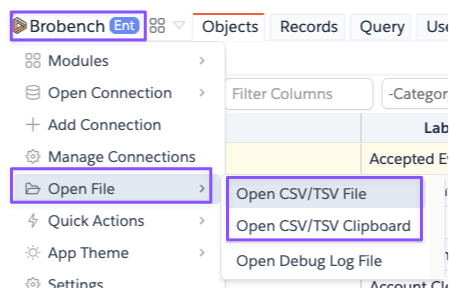
Click on the App Menu -> Quick Actions -> Open CSV File to pick a file directly, or Open CSV in Clipboard to open CSV content from your clipboard.
or
Click on the CSV icon in the Global Actions toolbar.

Adding CSV Tabs
Click on the + icon next to the tabs to open the input dialog. In the dialog, select a file or paste CSV content
directly or click on the Open Clipboard button to load from clipboard.

For large files, selecting a file is faster than copy-pasting the content. Searching within the grid can slow down for files over 500k rows.
Editing
Add editor controls are available in the right-click menu.
Adding Rows
Right-click the grid and select Add Rows to insert new rows. Choose where to insert:
| Position | Description |
|---|---|
| Start | Inserts at the top of the grid |
| Above Selection | Inserts above the selected row(s) |
| Below Selection | Inserts below the selected row(s) |
| End | Appends at the bottom of the grid |
Enter the number of rows to add in the prompt. New rows are created with blank values.
Adding Columns
Right-click and select Add Columns to insert new columns. Choose the same position options as rows. Enter one or more column names (comma or newline separated). Column names must be unique.
Editing Cells
Double-click any cell to edit its value inline. You can also select one or more cells, right-click, and use Set To to apply a value in bulk.
Set Values to Cells
Select or more cells, right-click and select Set To to apply values in bulk. Options include:

Fill Operations
Select one or more cells, right-click, and open Set To to apply values in bulk.
| Option | Description |
|---|---|
| New Value | Set all selected cells to a specific text value |
| Current Date | Fill with today's date |
| Current DateTime | Fill with the current date and time (ISO format) |
| True / False | Fill with boolean values |
| Null | Clear selected cells |
| Find / Replace | Search and replace within selected cells (case-insensitive, whole-cell or partial match) |
| Fill | Opens the advanced Fill dialog for generated values (see below) |
Advanced Fill
The Fill option opens a dialog with options to generate values automatically:
| Type | Description |
|---|---|
| Random UUID | Generates a unique UUID for each selected cell |
| Specified Values | Provide a list of values to apply sequentially, randomly, or with weighted probability |
| Date Range | Generate a sequence of dates between a start and end date, stepping by a configurable interval |
| DateTime Range | Same as Date Range but for date-time values |
Exporting
Click the Export button (save icon) in the toolbar to download all rows as a CSV file. The filename is based on the tab name.
For partial exports, select the rows you want, right-click, and use the standard grid export to export just the selection.