Desktop App
Brobench can be installed either as a Chrome/Edge Extension or a Desktop App. Each has its strengths. If you are new and this is the first time you are trying Brobench, the Chrome/Edge extension is the easier way to get started.
Desktop App supports macOS Apple Silicon and Windows x64. It shares the same codebase as the Browser Extension but there are a few differences around the sidebar and how you can work with multiple connections.
This page documents the features specific to the Desktop App. The rest of the functionality is the same as the Extension.
Install and Launch the Desktop App
Install the Desktop App for Windows or macOS.
Overview
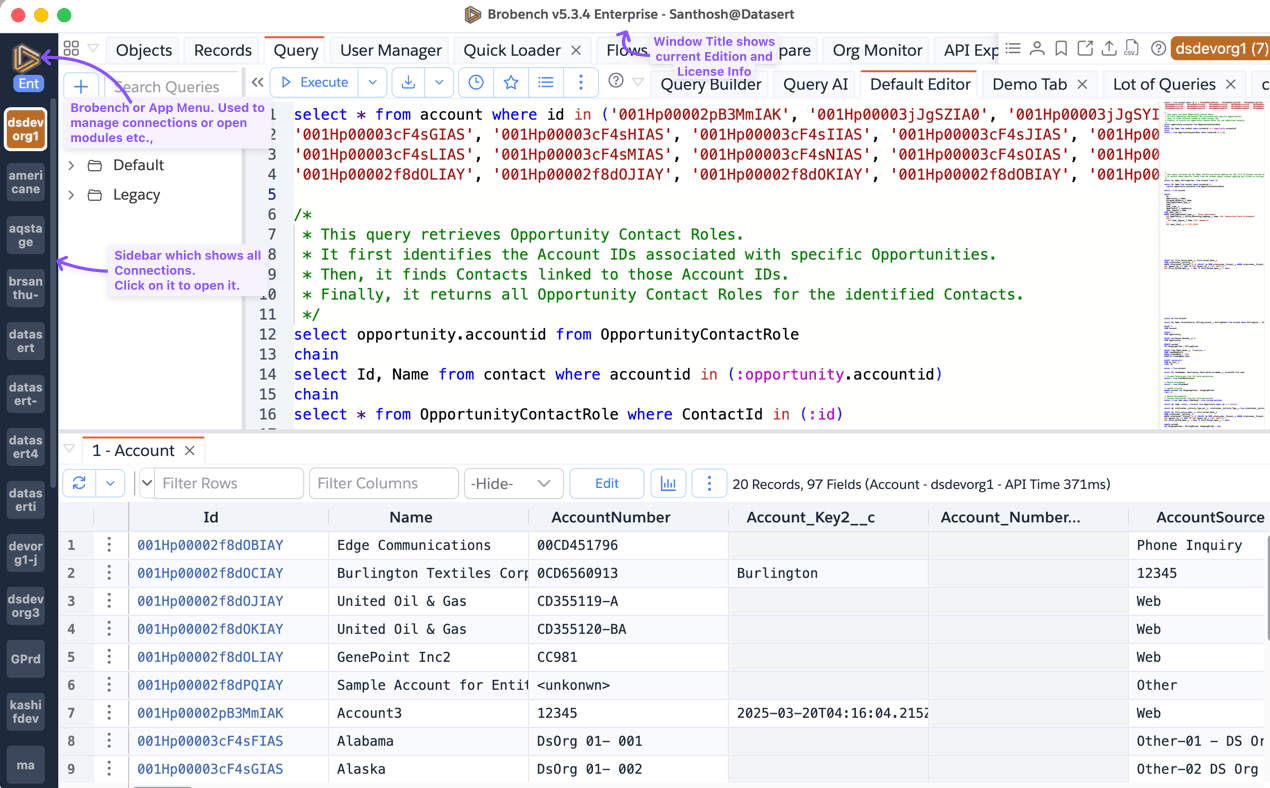
Here is an overview of the app and how it looks.
Sidebar
The sidebar is shown only in the Desktop App and lists all connections you have created. Click a connection to open it.
Brobench/App Menu
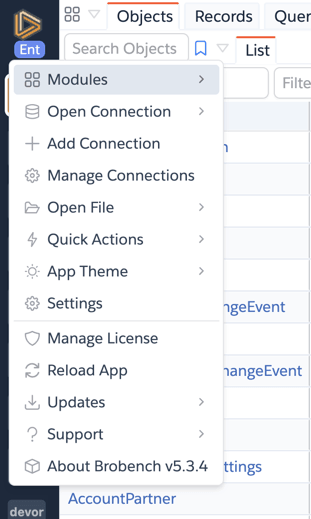
The Brobench menu lets you manage connections, license details, and other app settings.
Connection Tiles
Each connection is shown as a tile in the sidebar. If you don't see the connection you're looking for, check that it has been correctly added and that you're looking for the right name.
Tile Name
There is limited space to show the full connection name in a tile. By default it shows the Alias, which you can set in Edit Connection. If no alias is set, it defaults to the Name.
Tile Background Color
An unopened connection tile has a muted gray background. Once opened, the background changes to the connection's color. Connections are shown in the order defined in Connection details. If no order is set, they are sorted by Connection Alias or Name.
Tile Menu
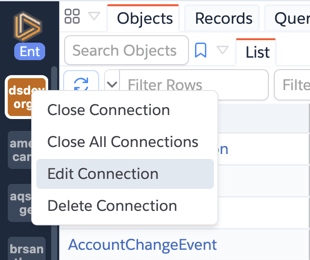
Right-click a tile to see a menu with actions to manage that connection.