Install Chrome/Edge Extension
Brobench can be used as a Chrome / Edge Extension or as a Desktop App in Windows or Mac. Each has its advantages and drawbacks. We recommend starting with the Extension — it’s the most straightforward way to explore Brobench, and you can always switch to the Desktop App later.
Supported Browsers
Brobench is a browser extension that adheres to Chrome Extension Manifest v3, and it is supported in the following browsers.
- Chrome Latest
- Edge Latest
If you use Firefox or Safari, we may extend the support later depending on the adoption of the extension.
Step 1: Install from Chrome Web Store
Go to Chrome Web Store and click
on Add to Chrome or Get button to install the extension.
Step 2: Open any Salesforce Page
Once the extension is installed, Log in to your Salesforce Org. If you’ve already logged in, refresh the page to make sure the extension is loaded.
Step 3: Click on the Brobench Icon
Brobench in-page icon would be shown on the right-edge of your Salesforce UI page. Click on the Icon to open the Brobench In-page popup.

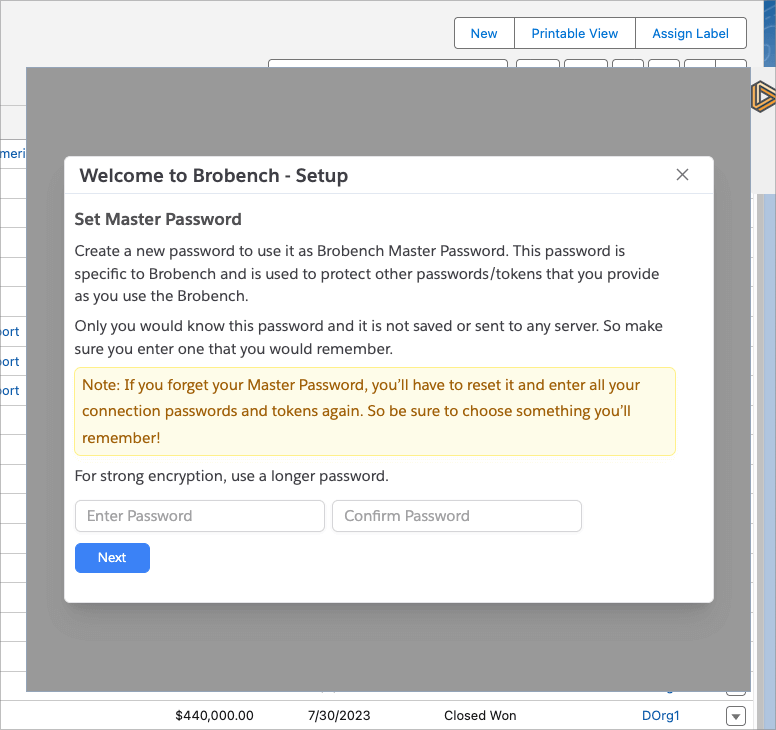
Step 4: Set the Master Password
The first time you launch the app, it’ll ask you to set the Master Password. The Master Password is used to encrypt password and tokens you share with Brobench.
Step 5: Choose the Registration Option
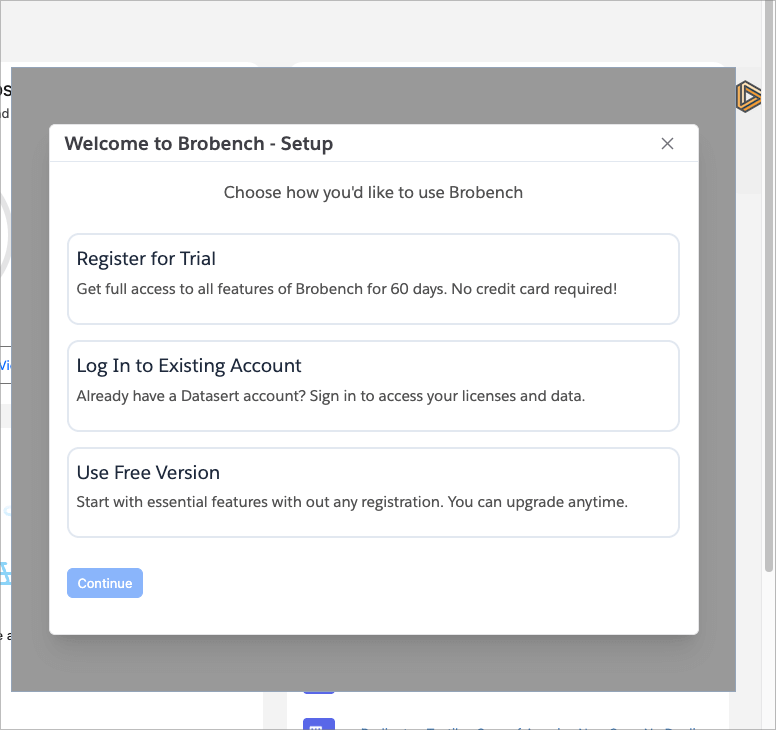
The final step is to register for a trial or Log in to your Datasert Account if you have one, or use the Free edition which doesn't need any registration/account creation.
If you’re using Brobench for the first time, we recommend registering for a trial to try the full features. No credit card is required. After the trial period, you can continue using the Free edition.
Select an option and click Continue.
Step 6a: Register for a Trial
Registering for Brobench Trial is straightforward. Create a Datasert Account using Sign up with Google or
Sign up with Email option.
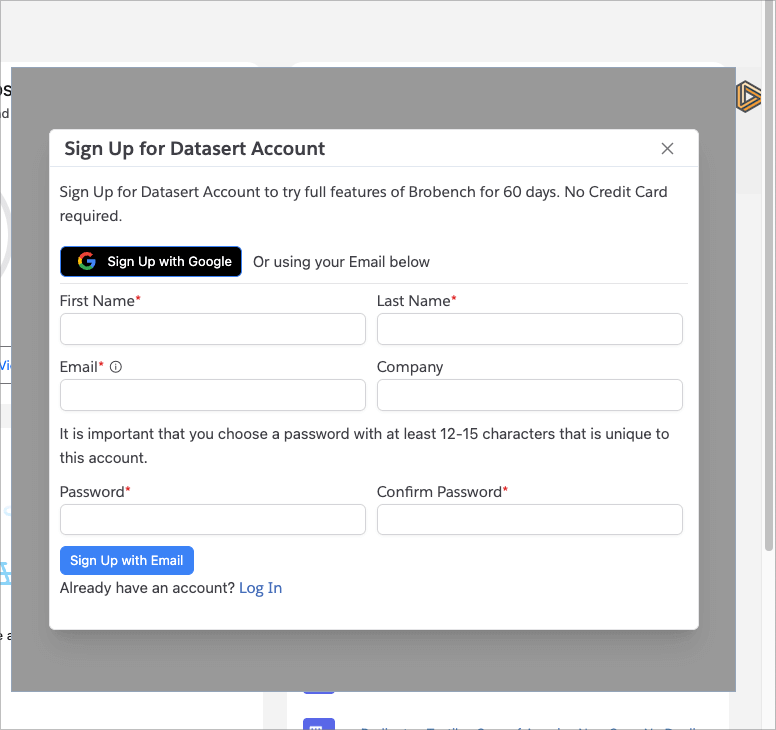
Follow the steps to complete registration. The app will be activated for a Trial and your license details will be shown.
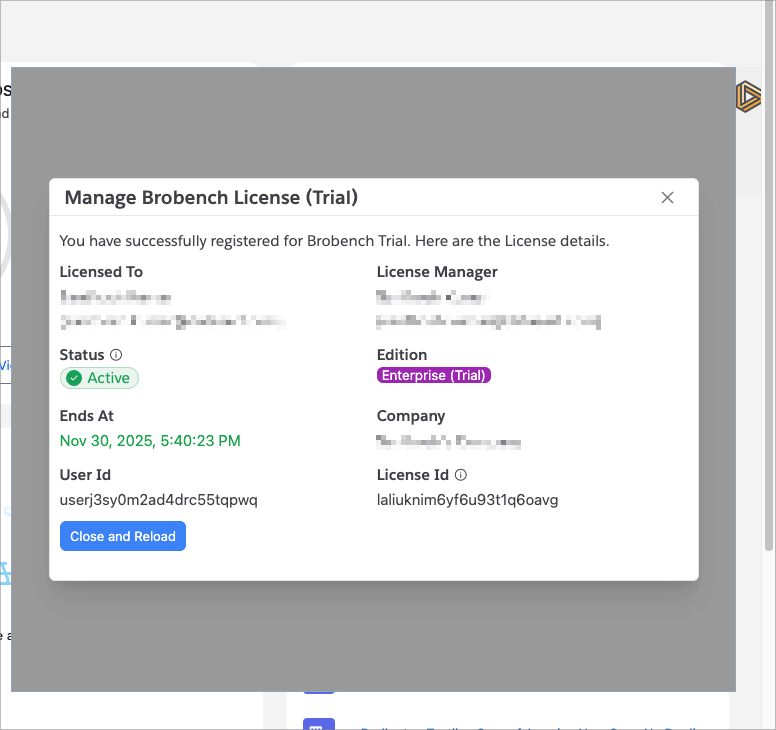
After that refresh the page and you’re good to go.
Step 6b: Or Log in to your Datasert Account
If you already have a Datasert Account (either personal or one from your company), choose
Log in to your Datasert Account option and log in.
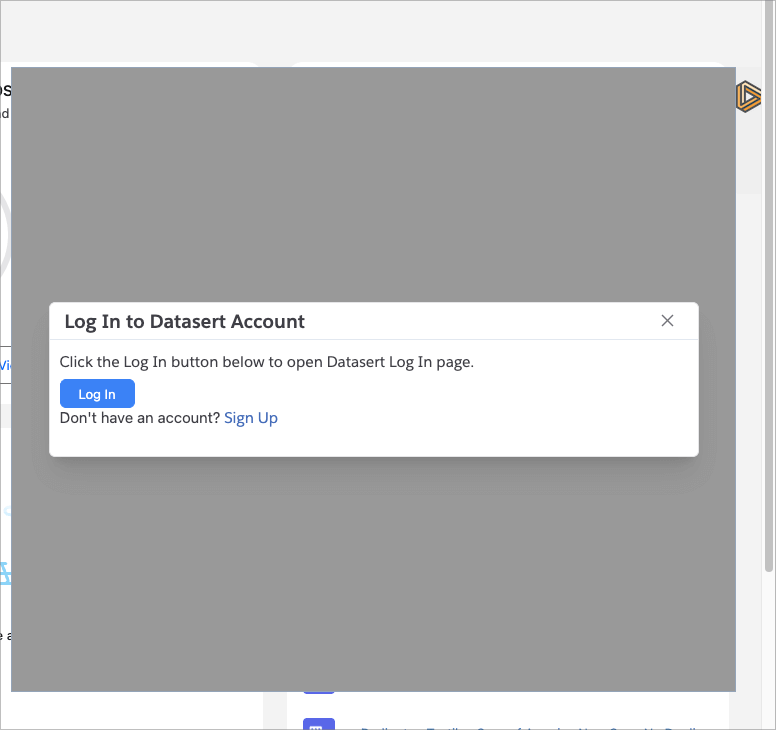
Step 6c: Or Continue with Free Edition
If you don't want to register for a Trial or log in, choose Use Free Edition. You can always register or log in later
from the App Menu.
Step 7: You're all set!
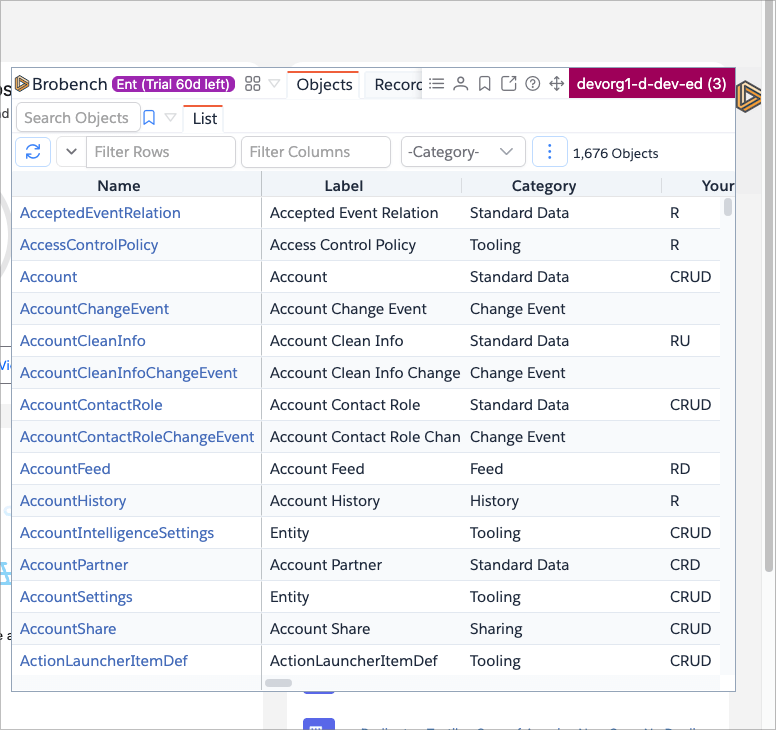
You should see the app loaded with the default Home tab.
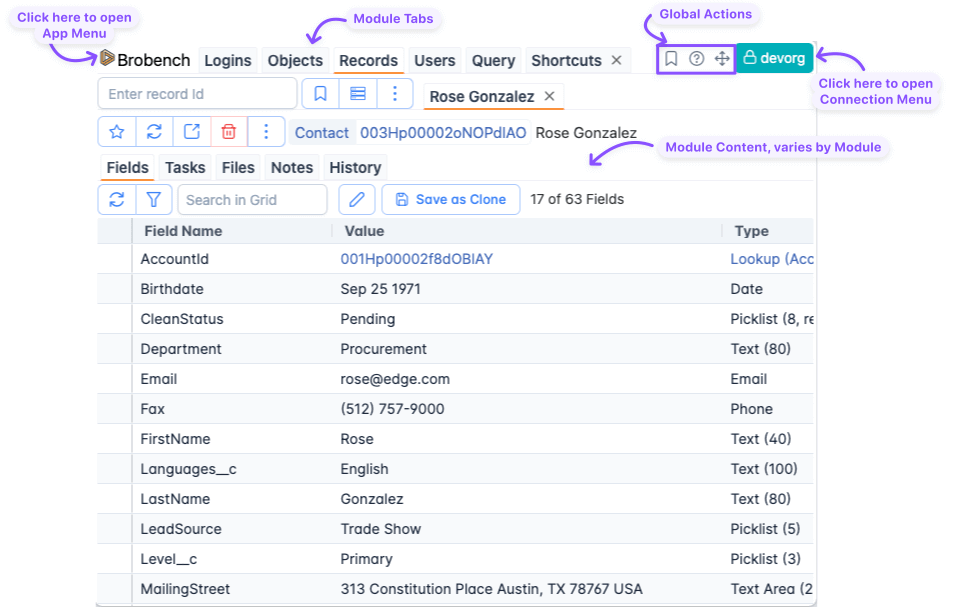
App Overview
Here’s what the app UI layout looks like.
View Full Page
Brobench by default is shown as a popup within the page, which is great for a quick peek into Record data or quickly edit the records. However, if you’re using Brobench to query and other things, opening the app in full page view gives you the complete screen real estate and lets you view more data without scrolling.
There are two ways to open the app in full page view.
-
Ctrl+ClickorCmd+Clickthe Brobench Icon in Salesforce Page

-
Click on the
Full Pageicon within the Brobench Popup

View Help
We understand that it’s hard to get to know a new application/tool. We’re here to help and provide you with details necessary to get familiar and get on with your day.
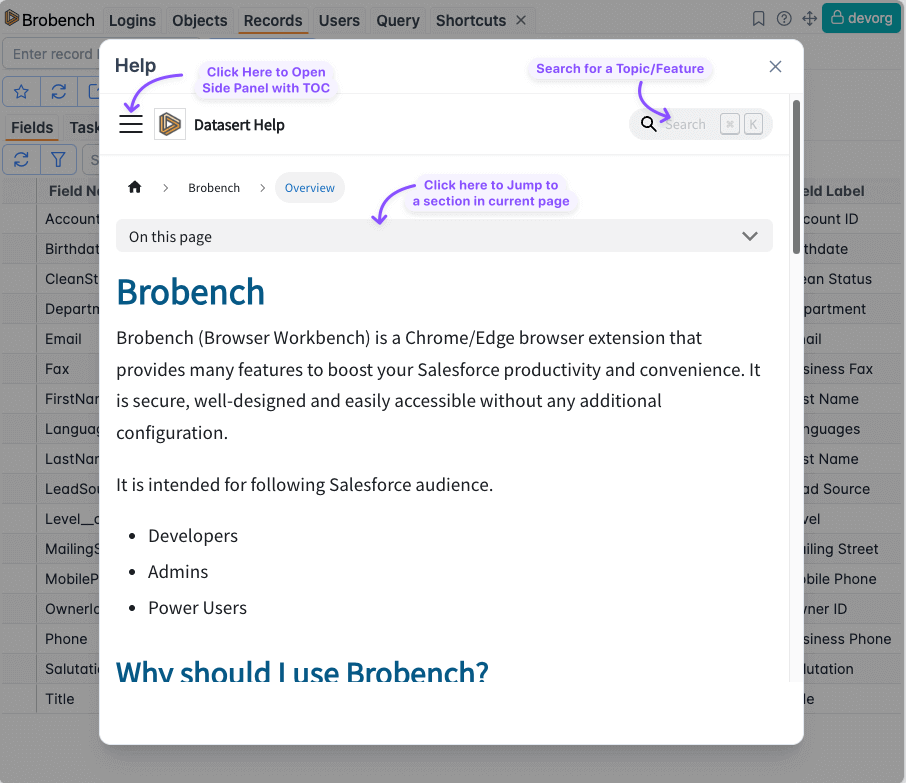
Click on the Help Icon in the Global Actions to open the Help dialog.

It will show contextual help for the current page. If the relevant article isn’t shown, use the search box to find it by topic name.
Next Steps
You have installed Brobench, activated, and have a brief idea how to launch the app. Next, go through the sidebar or Tools to understand how you can use Brobench to be more productive in your daily work.
Here are some useful links to get you started.