Backup
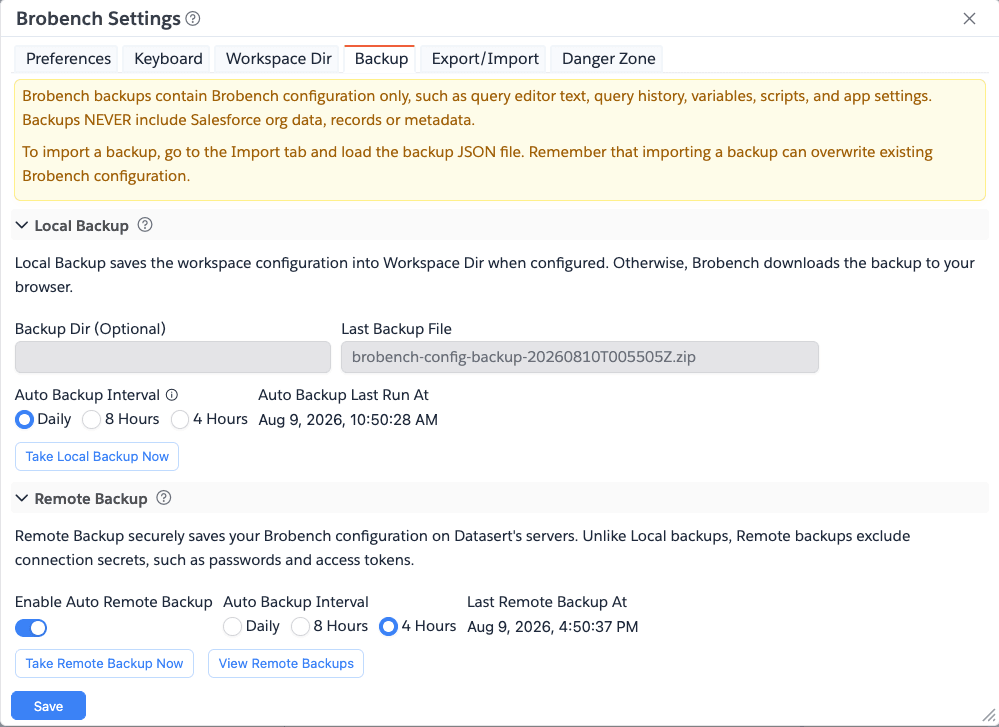
Brobench backups contain Brobench configuration only, such as query editor text, query history, variables, scripts, and app settings. Backups NEVER include Salesforce org data, records or metadata.
Brobench lets you configure/manage quite a bit of configuration — Saved Queries, Query Editor content, Settings, and more. Losing that configuration due to a corrupted Extension/Desktop app, or an accidental deletion or overwrite, can be really painful.
The Backup tab safeguards that configuration so you can restore it in case of any data loss.
To restore a backup, go to the Import tab and load the backup JSON file. Importing a backup overwrites your existing Brobench configuration, so take a fresh backup first if you want to be able to go back.
Local Backups
FreeLocal Backup saves your workspace configuration to a local folder identified by Workspace Dir. It's always on — there's no setting to disable it.
- Automatic backups. Brobench takes a Local Backup automatically at the interval you choose:
Daily(default),8 Hours, or4 Hours. - On-demand backups. Click
Take Local Backup Nowto back up immediately. - No Workspace Dir configured? Local Backup no longer requires Workspace Dir. If it isn't set (or isn't writable), Brobench downloads the backup as a zip file through your browser's normal downloads instead of failing.
When Workspace Dir is configured, backups are stored as a zipped JSON file in {Workspace Dir}/data/backup. For
example, if your Workspace Dir is /Users/john/.brobench/chrome, backups are stored in
/Users/john/.brobench/chrome/data/backup.
Remote Backups
Remote Backup is available for Essential+ users. If your license doesn't include it, the tab shows a message asking you to upgrade.
Remote Backup securely saves your Brobench configuration to Datasert's servers, encrypted in transit and at rest. Unlike Local Backup, Remote Backup always excludes connection secrets (such as saved passwords and access tokens).
- On-demand backups. Click
Take Remote Backup Nowto back up immediately. - Automatic backups. Turn on
Enable Auto Remote Backupand pick an interval (Daily,8 Hours, or4 Hours) to have Brobench back up automatically. TheLast Remote Backup Atfield shows when it last ran.
View Remote Backups
Click on the View Remote Backups button to view all your available remote backups. App shows the following dialog.
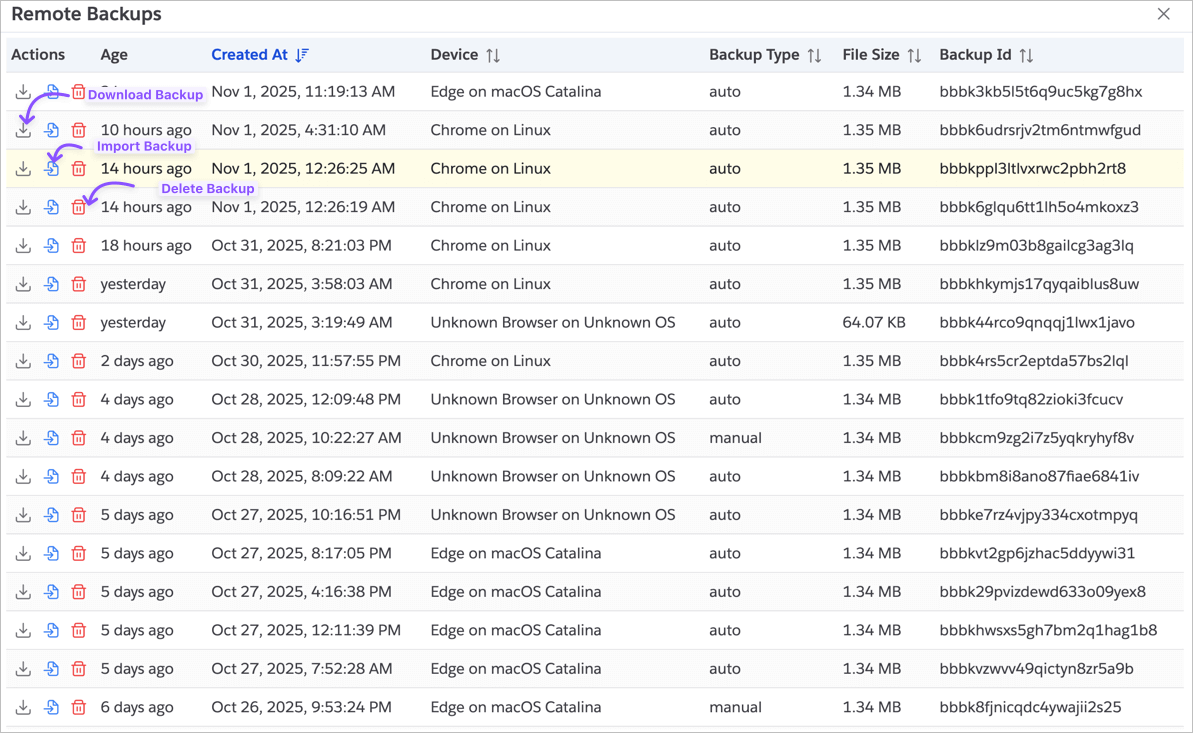
Download Backup: Click on the Download icon to download the backup file to your local machine.
Import Backup: Click on the Import icon to import the backup. App will prompt you to confirm the import action and
after confirming, imports the backup to overwrite the current configuration.
Import completely overwrites the configuration from the selected Backup. If you want to be safe, make sure you take backup of the current configuration before importing.
Delete Backup: Click on the Delete icon to delete the backup from the server. App will prompt you to confirm the
delete action and after confirming, deletes the backup.