Call Graph
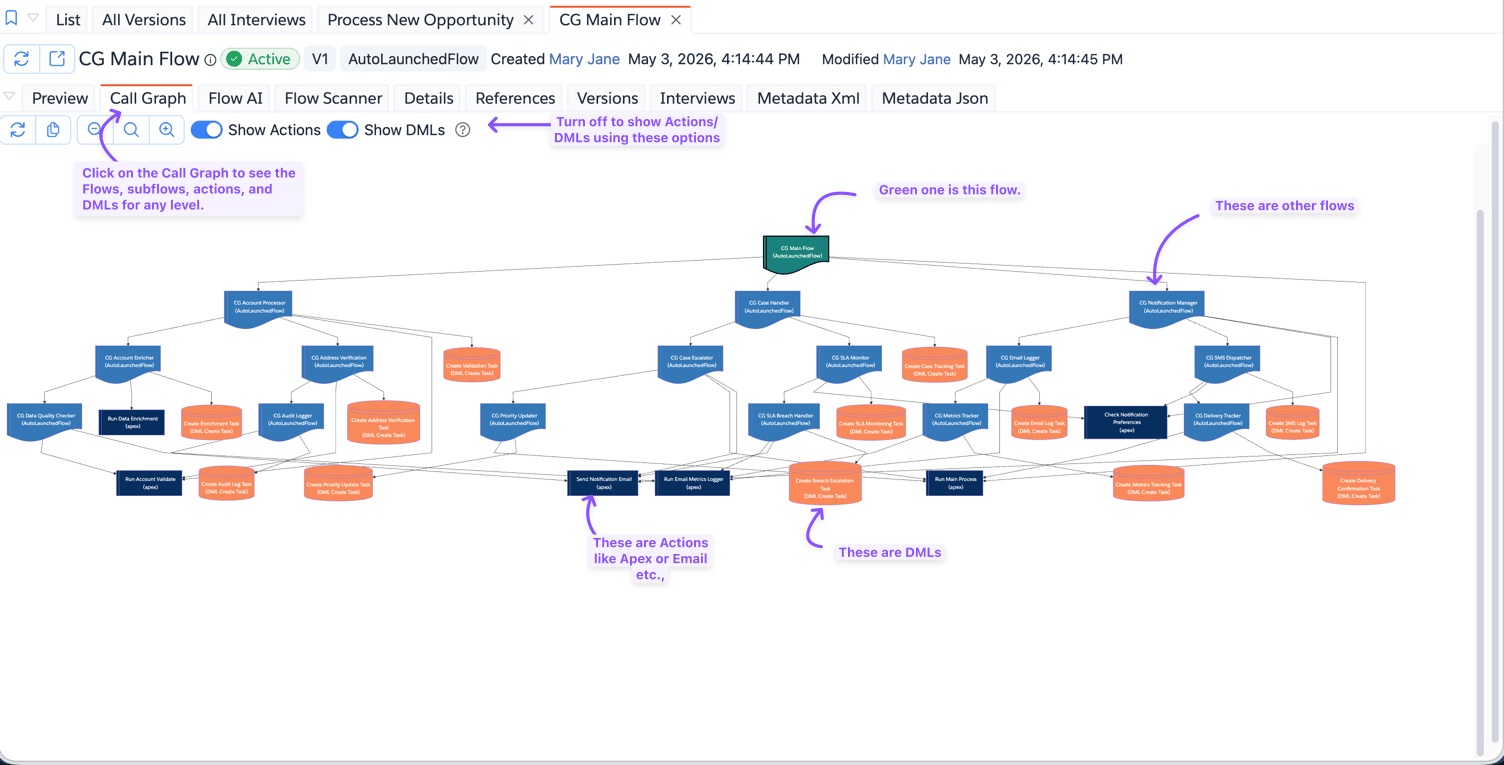
The Call Graph tab gives you a visual map of how a flow connects to other flows, external actions, and DML operations — making it easy to understand the full execution footprint of a flow at a glance.
Overview
When you open a flow and switch to the Call Graph tab, Brobench automatically:
- Analyses the flow's metadata to find all subflow references, action calls, and DML operations.
- Fetches the metadata of each referenced subflow (recursively, up to 6 levels deep).
- Renders an interactive diagram showing the complete call hierarchy.

Reading the Diagram
Invoker node
At the top of the diagram, a node shows what triggers or invokes the root flow:
| Flow type | Shape | Description |
|---|---|---|
| Screen Flow | Curved trapezoid | Invoked by a user (UI Action) |
| Record-triggered | Hexagon | Triggered by a record event |
| Scheduled | Odd shape | Triggered on a schedule |
| Platform Event | Odd shape | Triggered by a platform event |
A braces note is attached to the invoker with the specific trigger details — for example,
Account Trigger (Before Save) or Scheduled Flow (Daily at 09:00).
Flow nodes
Each flow in the hierarchy is shown as a document node (same shape as subflow nodes in the Flow Preview tab):
- Root flow — teal/green fill with a bold border, indicating it is the focal flow.
- Subflow — blue fill, matching the subflow colour in Flow Preview.
- Unreachable flow — red/pink fill, shown when Brobench could not fetch the metadata (e.g. managed package flow).
Click any flow node to open that flow in a dialog, where you can explore it fully.
Action nodes
Action calls (invocable actions and Apex plugin calls) appear as rectangular nodes in dark navy, matching their appearance in Flow Preview. The same action called from multiple flows is deduplicated — it appears once with edges from every flow that calls it.
DML nodes
DML operations are shown as cylinder nodes in orange, matching the DML style in Flow Preview. Multiple elements in
the same flow that operate on the same object and operation type are consolidated into a single node — for example, two
recordCreates for Case become one Case (DML Create) node.
Toolbar Options
| Option | Default | Description |
|---|---|---|
| Show Actions | On | Toggle visibility of action call nodes |
| Show DMLs | On | Toggle visibility of DML operation nodes |
Tips
- Hover over any flow or action node to see its description (if one is set on the flow or action).
- Click a subflow node to open it in a dialog and explore its own call graph, preview, and details.
- Flows that cannot be fetched (managed package flows with restricted access) are shown in red so you can identify gaps in the lineage.
- Use the refresh button in the toolbar to re-fetch all metadata if you have made changes to a flow.