Territory Details
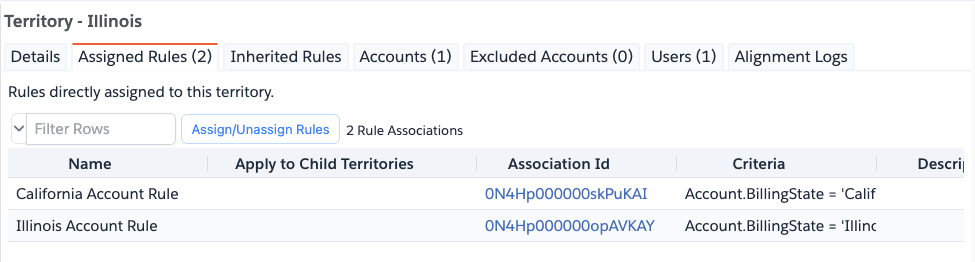
Clicking a territory in the hierarchy tree opens its detail panel on the right side of the screen. The panel shows the territory name and a set of tabs.
Details Tab
Displays the core fields of the territory record:
- Name, Developer Name, Description
- Territory Type
- Account, Contact, and Case access levels
- Forecast User
- Parent territory and full hierarchy path
- Counts: assigned rules, accounts, users, hierarchy users, hierarchy accounts
- Created By / Date and Last Modified By / Date
Rules Tab
Lists the assignment rules directly assigned to this territory. The tab label shows the count, for example **Rules (3) **.
Each row shows the rule name, active status, and criteria. You can click through to view the full rule in the Assignment Rules tab.
Inherited Rules Tab
This tab shows the rules inherited through its parents. It shows same details as Rules Tab. These rules cannot be manipulated.
Accounts Tab
Lists all accounts associated with this territory. The tab label shows the count. Columns include account name, ID,
and the association cause (e.g. Manual, Territory2Manual, or the name of the rule that matched the account).
Excluded Accounts Tab
Lists all accounts explicitly excluded to be assigned to this Territory
Users Tab
Lists all users assigned to this territory. The tab label shows the count. Columns include user name, ID, and role.
Alignment Logs Tab
Shows the alignment log history for this territory — entries produced when Salesforce runs assignment rules against the territory model. Useful for troubleshooting rule execution timing and results.