Copy/Clone User
Copy/Clone User helps you take one source user from User Manager and either create new users from that source, or copy selected access and ownership-related items to existing users.
How to Launch
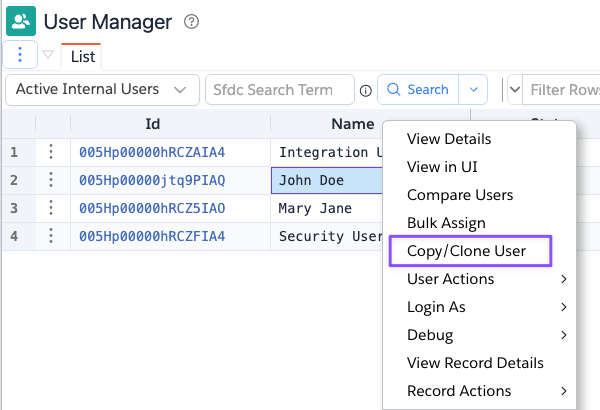
Tools Menu -> User Manager -> select one user -> Copy/Clone UserTools Menu -> User Manager -> select multiple users -> Copy/Clone User
When you select multiple users, the first selected user becomes the source user and the remaining selected users are preloaded as copy targets.
Overview
The dialog has two modes:
Copy Usercopies selected access, memberships, ownerships, and optional record details from the source user to existing users.Clone Usercreates new users using the selected source user as the template.
The source user summary at the top shows the current source user's name, profile, role, username, email, department, and title.
Copy User
Use Copy User when the target users already exist.
Steps
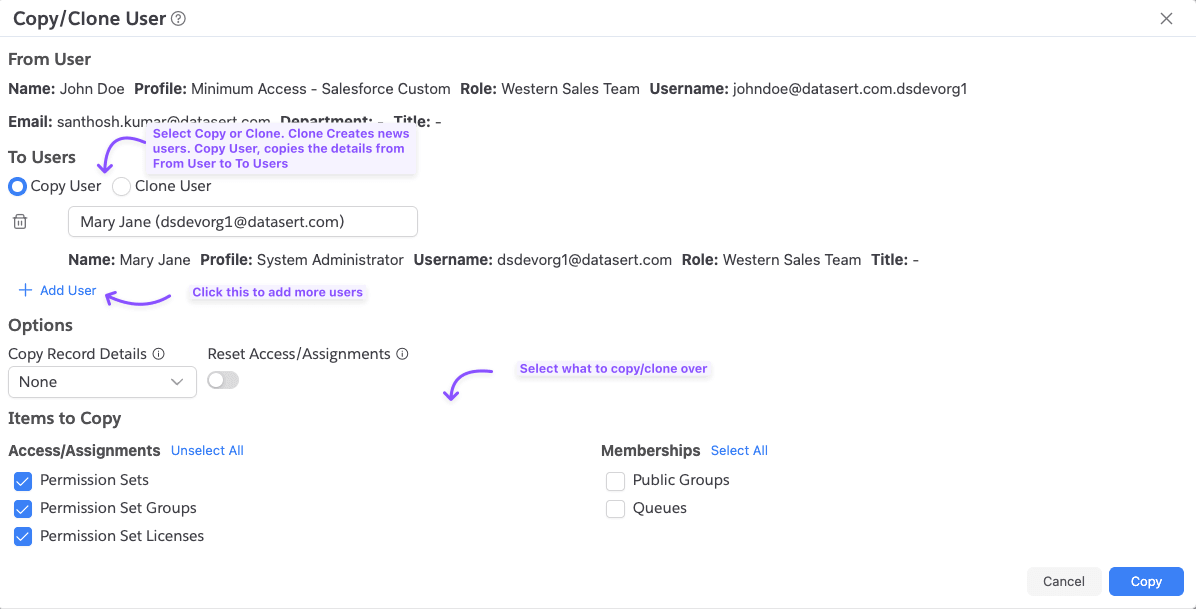
- Keep
User ActionasCopy User. - Use
Add Userand search for one or more target users. - Choose
Copy Record Detailsif you also want to copy selected User record fields. - Enable
Reset Access/Assignmentsif you want Brobench to first add missing source access and then remove target access that does not exist on the source user. - Select the access, membership, and ownership items to copy.
- Click
Copy.
Select What to Copy
Copy Record Details is available only in Copy User mode.
None: does not copy User record fields.Important Ones: copiesProfile,Role,Manager,Department, andTitle.All: copies all supported updatable User fields except values blocked by Salesforce metadata rules.
Select other Copy Items to be copied over.
If you select Reset Access/Assignments, it will remove the Permission Sets or Permission Set Groups from the target
users that are not present on the source user.
Review Results
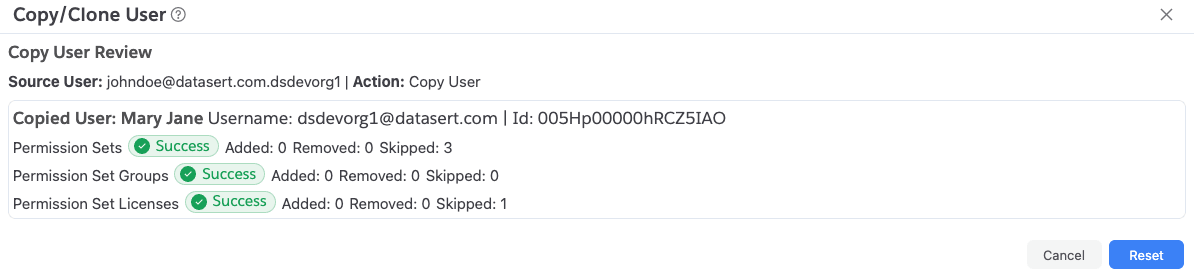
After Clone or Copy, the dialog shows a review summary for each selected item and target user, including counts for
added, removed, skipped, warnings, and errors.
Clone User
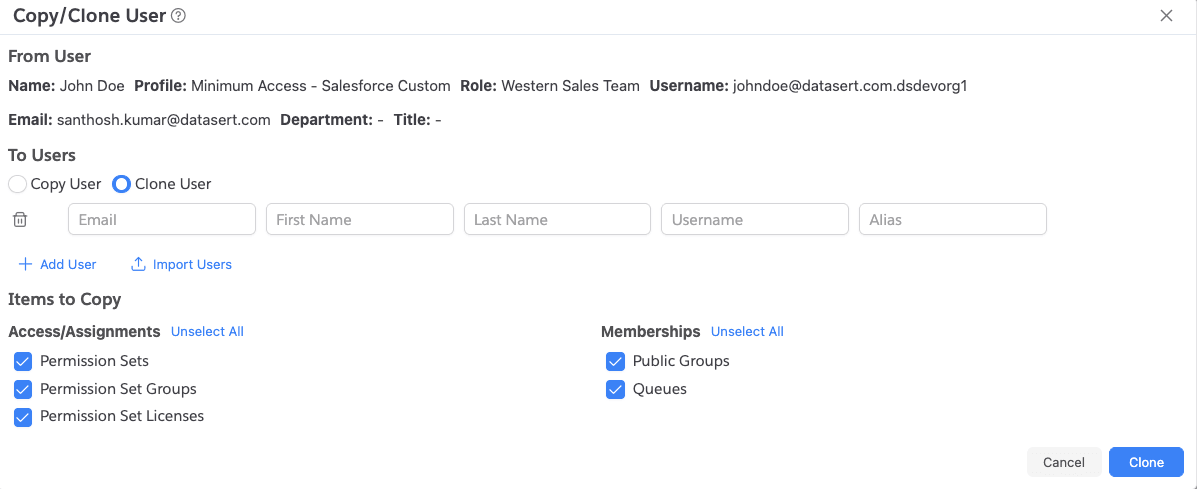
Use Clone User when you want to create new users from the selected source user.
Steps
- Switch
User ActiontoClone User. - Enter target user values for
Email,First Name,Last Name,Username, andAlias. - Click
Add Userto add more rows when cloning multiple users. - Optionally click
Import Usersto load users from CSV or TSV content. - Select the access, membership, and ownership items you want to copy from the source user.
- Click
Clone.
Import Users
The import dialog accepts either a file or pasted CSV/TSV content.
Supported column names include:
Email,email,Mail,mailFirst Name,FirstName,First,firstLast Name,LastName,Last,lastUsername,UserName,User Name,usernameAlias,alias
If email is provided, the dialog attempts to prefill missing first name, last name, username, and alias values from that email.
Notes
First Name,Last Name,Email,Username, andAliasare required for clone rows.- The new users use the source user's profile.
- Usernames must be unique within the import request and must not already exist in Salesforce.
- Clone uses the source user's creatable User fields as the template, but unique and external-id style fields are cleared before insert.