Open Resource
Open Resource lets you search and open Brobench tools, Salesforce objects, and metadata components from one dialog. In later releases, more resources would be included.
When you first open it, it shows resources you recently used so you can re-open easily.

How to Launch
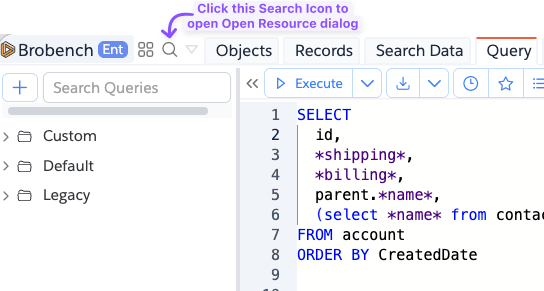
In the Brobench app toolbar, click the Open Resource search icon.
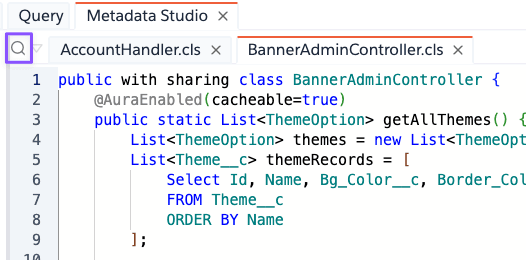
You can also click on the Search Icon in the Metadata Studio to open Open Resource with just Metadata Components.
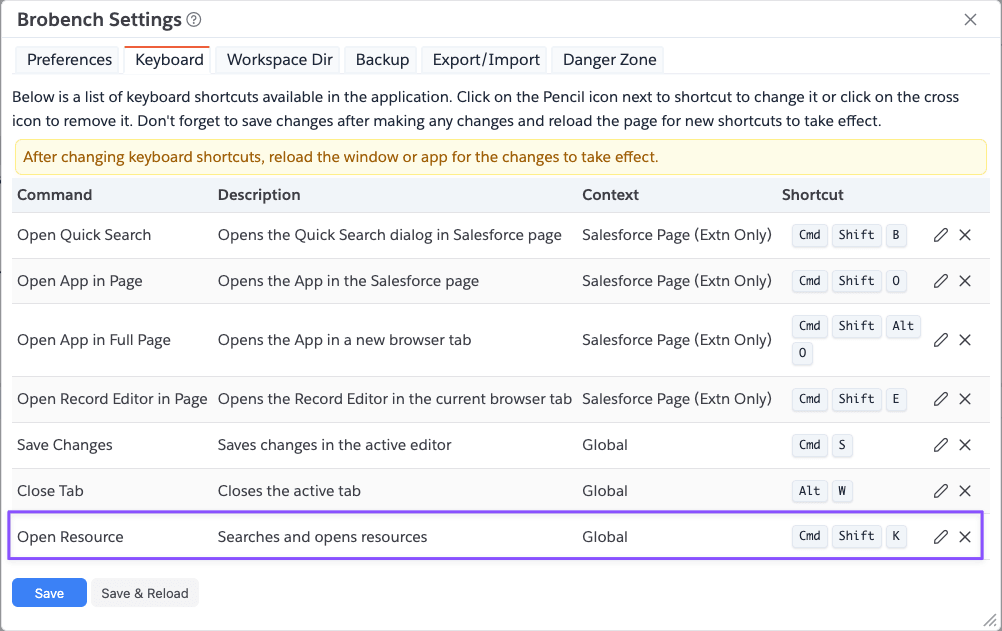
You can also press Cmd + Shift + K on Mac or Ctrl + Shift + K on Windows.
Overview
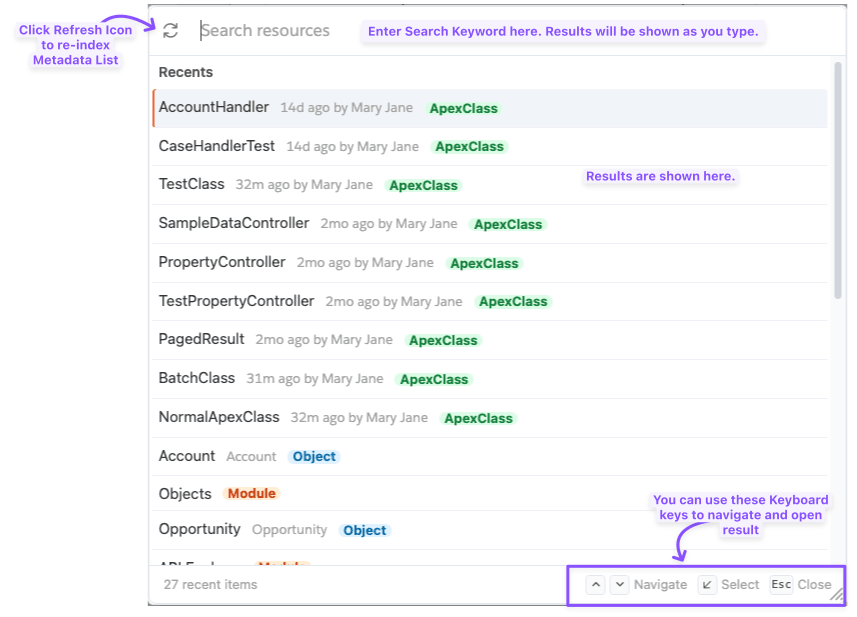
This is how the dialog looks like.
Usage
- Enter at least two characters to search available resources. Matching checks each result's name and description, so a search term doesn't have to appear at the start of the label to find a match.
- Select a result with the arrow keys, or Home/End to jump to the first or last result, and press Enter to open it. You can also click a result directly, or hover to highlight it, and use the up/down chevrons in the dialog footer to move the selection.
- Press Esc to close the dialog without opening anything.
- Use the refresh icon to reload the resource list; it shows a loading spinner while refreshing, and reports an error if the refresh fails.
Each result is tagged with its kind — Tool, Object, or a metadata type such as Apex Class, Aura, or LWC — using a distinct color per kind so you can tell result types apart at a glance. Metadata components are available in Professional edition and above.
When the search box is empty, Open Resource lists resources you've recently opened, most recent first. If a search returns no matches, or there are no recent items yet, the dialog shows a "No results found" or "No recent items" message instead of an empty list.
Searching and Matching
Search Method:
- Search is performed after you enter 2 characters
- You can enter multiple words and in such cases, resources containing all entered words will be shown
- Up to 250 results are shown at a time;
Results are shown in this order.
- Resource with exact match
- Resource which starts with any of the keywords
- Resource which ends with any of the keywords
- All others
Change the Keyboard Shortcut
To change the shortcut, open Settings -> Keyboard Shortcuts, find Open Resource, and click the Pencil icon. Press
the new key combination, click OK, then click Save in Settings. Reload the page for the new shortcut to take
effect.
The default shortcut is Cmd + Shift + K on Mac and Ctrl + Shift + K on Windows.