Saved Values
Saved Values lets you store named text snippets and recall them later from anywhere in the app. Instead of keeping a separate text file for things like ID lists or frequently used query inputs, you can save them by name in Brobench and paste them back with two clicks.
Values are stored persistently in the browser's local database and survive page refreshes and restarts.
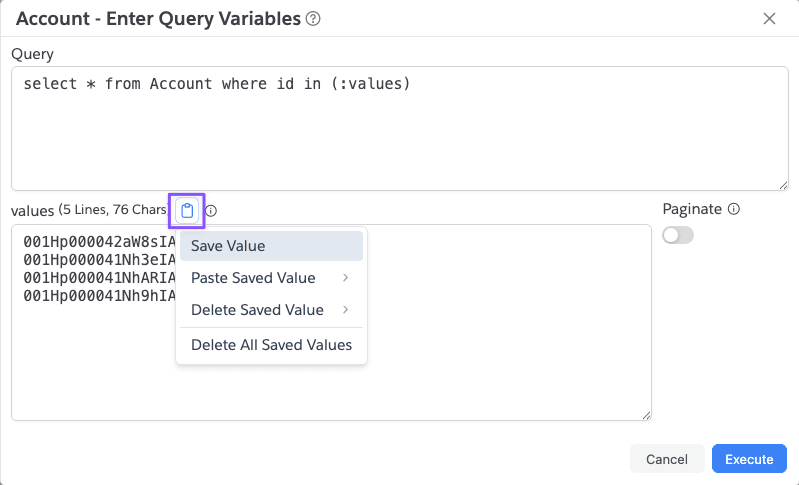
Saving a Value
Wherever Saved Values is available, you'll see a clipboard icon button. Click it to open the menu, then choose Save Value. A dialog asks you for a name — enter something descriptive and confirm. The current text in that field is saved under that name.
If you save using a name that already exists, the existing value is overwritten.
Pasting a Saved Value
Click the clipboard icon and choose Paste Saved Value. A submenu lists all your saved values in alphabetical order. Click one to paste it into the current field.
Deleting Saved Values
- Delete Saved Value — opens a submenu of all saved values. Selecting one asks for confirmation before deleting it.
- Delete All Saved Values — deletes everything with a single confirmation. Only shown when at least one value exists.
Where Saved Values Are Available
Saved Values appears in several places across the app:
| Location | What you save |
|---|---|
| Query Variables dialog | ID lists and other multi-line values used in SOQL IN clauses |
| Value Viewer | Any text content being viewed — JSON, XML, plain text, etc. In diff mode there are separate buttons for the left (source) and right (target) panes |
| Datagrid context menu | Values from a column — right-click a cell and choose Copy → Save Value |
| CSV Input dialog | CSV/TSV content for reuse across imports |
| Quick Loader input dialog | SOQL queries and CSV data used in data loads |