View Record Files
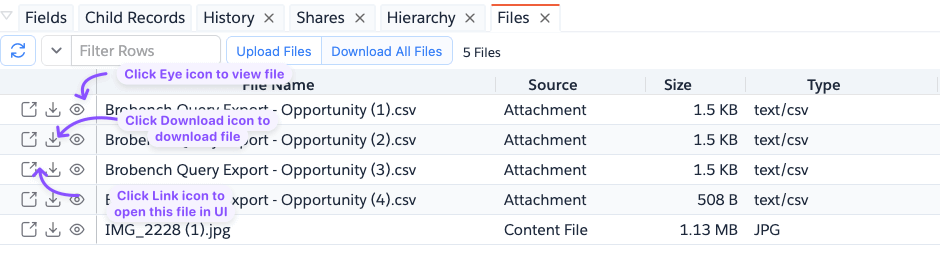
Files tab shows the Content Document and Attachments associated with the record.
Actions
- Click on the
Eyeicon to preview the file - Click on the
Downloadicon to download the file - Click on the
Linkicon to open the file in UI - Click on the
Download All Filesbutton to download all shown files - Click on the
Upload Filesbutton to upload files
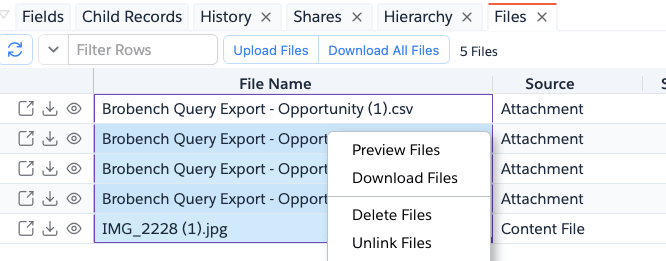
You can select multiple files, right-click to act on those files. You can do bulk file download and preview.
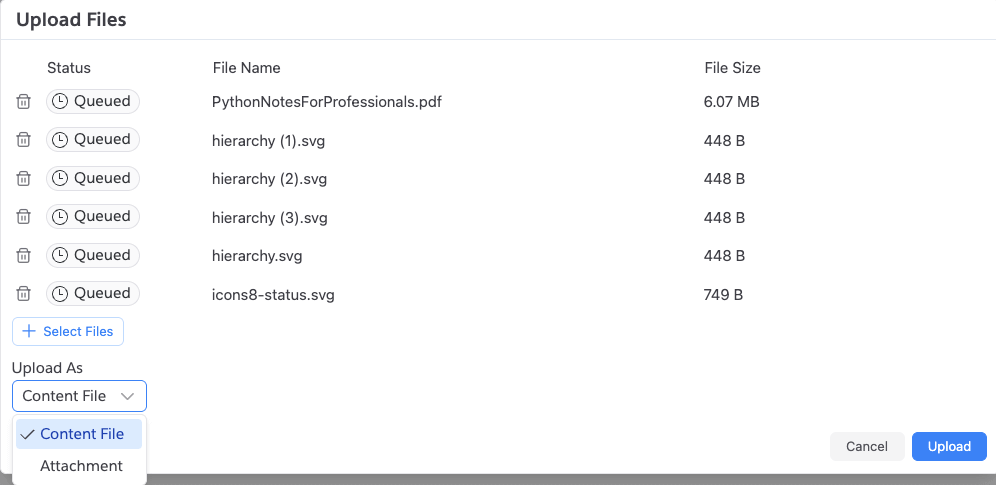
Upload Files
Click on the Upload Files button to show the dialog below, which lets you bulk upload files from your local desktop to either Content Files or
Attachments.