Validation Rules
The Validation Rules tab lists all Validation Rules defined on an Object and lets you add, edit, delete,
activate/inactivate, and test them.

Opening the Tab
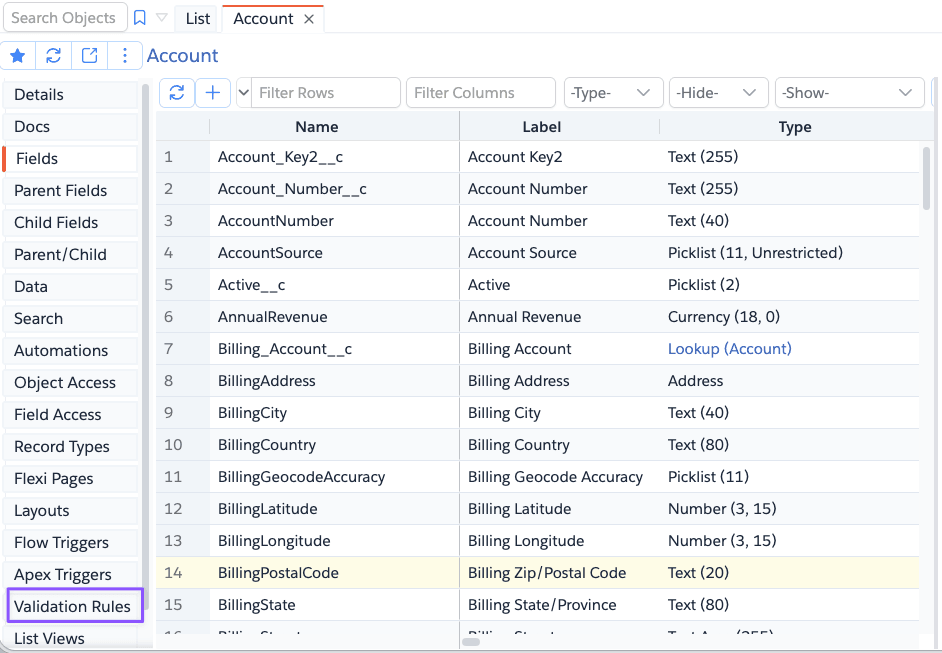
Open an Object and select the Validation Rules tab.
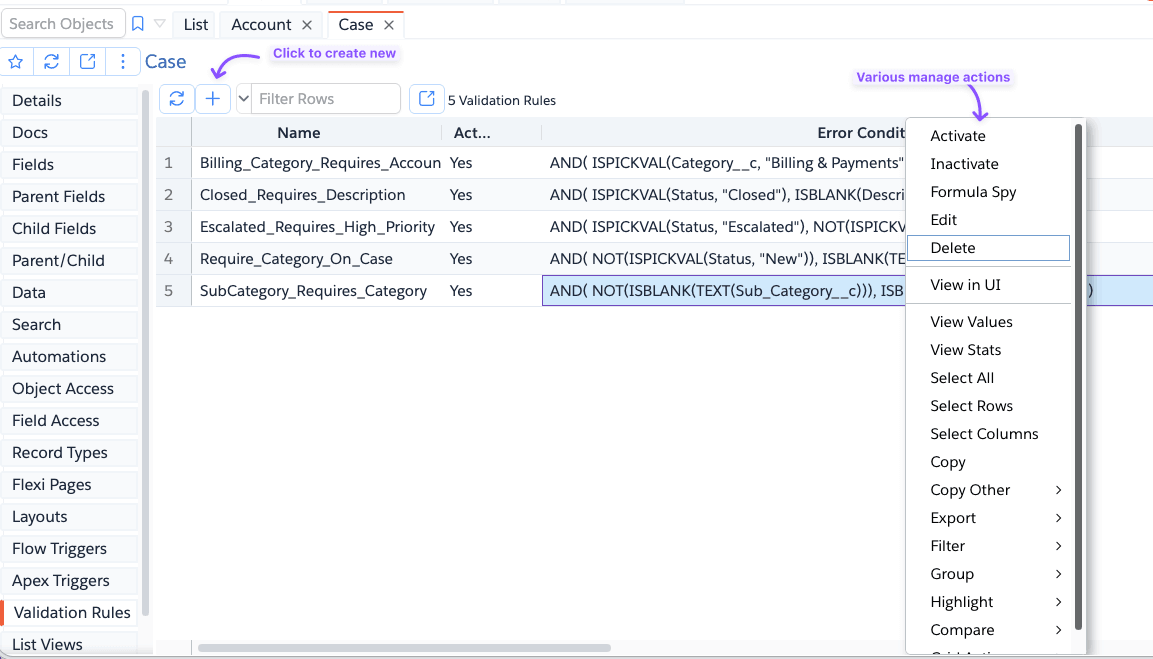
The grid shows each rule's Name, Active status, Error Condition formula, Error Message, Namespace, Description, Error Display Field, Id, and audit fields (Created/Modified By and Date).
Add / Edit
Click the + (Add) button to create a new rule, or double-click an existing row to edit it.
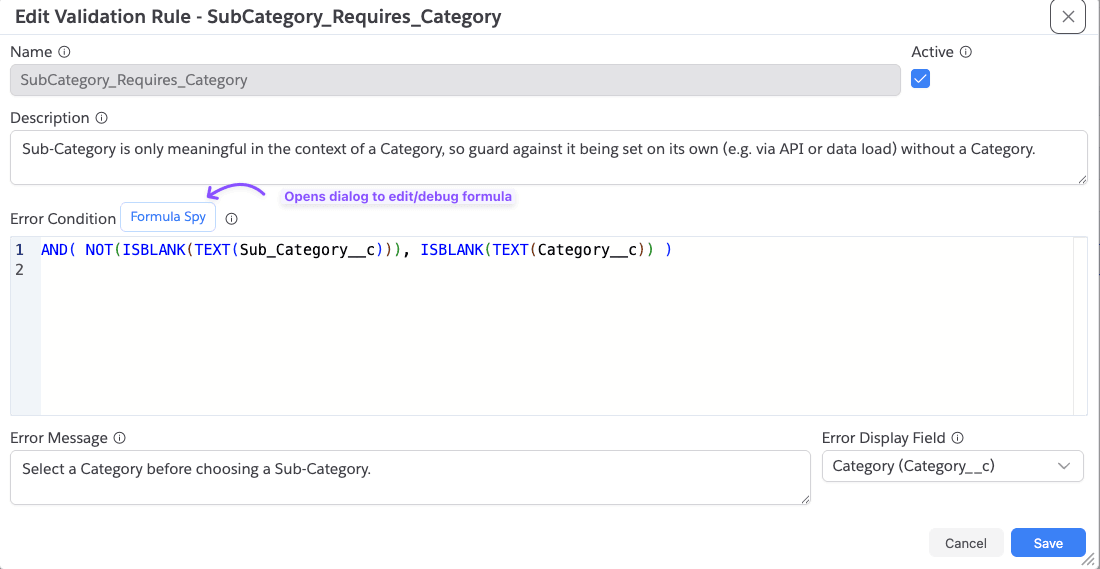
The dialog lets you set:
| Field | Description |
|---|---|
| Name | Unique API name for the rule. Cannot be changed once created. |
| Active | Whether Salesforce evaluates this rule. |
| Description | Optional internal note for administrators. |
| Error Condition | The formula that evaluates to true when the record should be rejected. |
| Error Message | The message shown to the user when the rule fails. |
| Error Display Field | Optional field where the error message is displayed. Calculated and system fields are excluded. |
The Error Condition field is a full formula editor with Salesforce formula syntax highlighting and completion. Click
Formula Spy next to the editor to test the condition before saving —
see Evaluating the Formula with Formula Spy below.
Saving deploys the rule to your org via the Metadata API.
Activate / Inactivate
Select one or more rules in the grid, right-click, and choose Activate or Inactivate to toggle whether Salesforce
enforces those rules. You can select multiple rules and change them all in one action.
Delete
Select one or more rules, right-click, and choose Delete. Only rules that don't belong to a managed package (i.e. no
namespace) can be deleted; Brobench blocks the action and tells you if any selected rule is namespaced.
You'll be asked to confirm before the rule (s) are permanently removed from your org.
Evaluating the Formula with Formula Spy
Validation Rule formulas can be hard to reason about, especially with nested functions and cross-object references. Formula Spy lets you evaluate the Error Condition against real (or hand-entered) field values so you can see exactly why a record would pass or fail, without saving anything or triggering the rule in your org.
You can open Formula Spy for a Validation Rule in two places:
- From the grid — right-click an existing rule and choose
Formula Spyto inspect why it evaluates the way it does for a given record. - From the Add/Edit dialog — click the
Formula Spybutton next to the Error Condition editor while creating or editing a rule.
See Formula Spy on how to use the Formula Spy.