Object Parent/Child Browser
The Parent/Child tab is available on the Object Details page and lets you navigate the full relationship graph of a Salesforce object. Starting from the current object, you can expand its parent and child relationships recursively, traversing the entire object model without leaving the page.
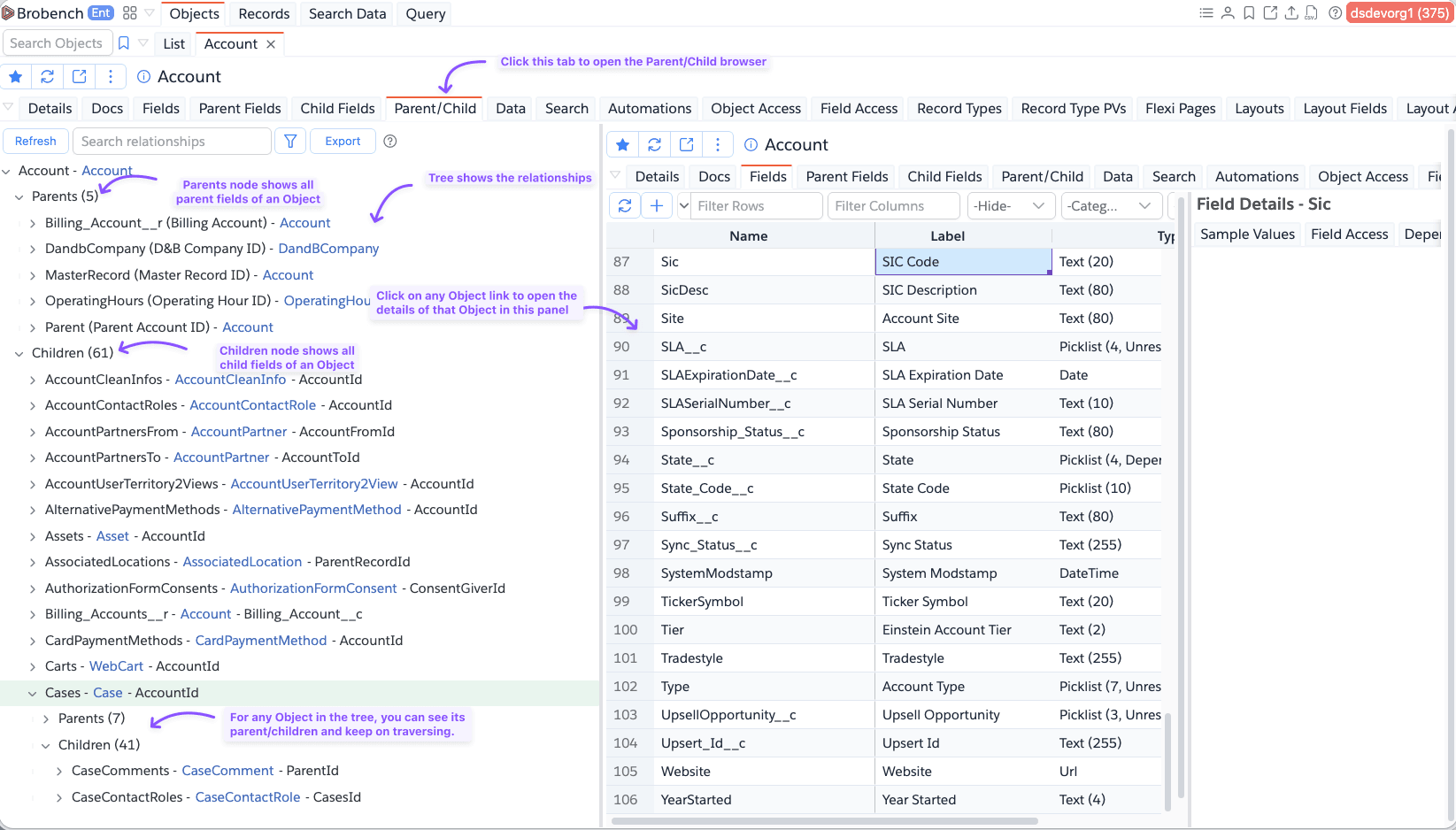
The screen is split into two panes. The left pane shows the relationship tree with a search box. The right pane shows the details of whichever object is currently selected in the tree.
Check out the similar feature called Record Parent/Child browser which shows the actual record populations.
Tree Structure
The root node of the tree is the object you opened. Expanding it reveals two folders:
- Parents (N) — lookup and master-detail fields on this object that point to another object.
- Children (N) — child relationships where other objects have a lookup or master-detail field pointing back to this object.
The count in parentheses reflects how many relationships are visible under the current filter settings.
Parent nodes
Each parent entry shows the relationship name, its label, and the target object:
CreatedBy (Created By) - User
Account (Account) - Account
Clicking the object name in a parent node selects that object in the right pane. Expanding the node reveals its own Parents and Children folders, letting you keep traversing.
Child nodes
Each child entry shows the relationship name, the child object, and the lookup field on that child:
Contacts - Contact - AccountId
Opportunities - Opportunity - AccountId
Clicking the object name selects it in the right pane. Expanding the node reveals the child object's own Parents and Children.
Right Pane
The right pane shows the full object detail view for whichever object you have selected. This includes its fields, metadata, and other tabs — the same content you would see if you opened that object directly.
Search
Type in the Search relationships box to filter tree nodes by name. Only nodes whose labels match the search term are shown.
Options
Click the filter icon in the toolbar to open the Options popover:
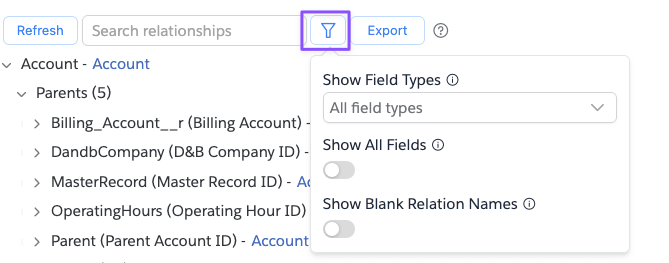
| Option | Default | Description |
|---|---|---|
| Show Field Types | All | Multiselect filter: Standard Fields, Custom Fields, Package Fields. Leave empty to show all. |
| Show All Fields | Off | When off, hides common system lookup fields (CreatedById, LastModifiedById, OwnerId, RecordTypeId) and system child relationships (Feeds, Histories, Shares, Tasks, etc.). Turn on to see everything. |
| Show Blank Relation Names | Off | When off, hides relationships where Salesforce does not expose a relationship name. Turn on to include them. |
Refresh
Click Refresh to clear the cached metadata for the currently selected object and reload its relationships. Use this after making schema changes to see updated field and relationship data.
Export
Click Export → Copy Dependencies as Tree to copy the currently expanded tree to the clipboard as an ASCII tree. This is useful for documenting or sharing the relationship structure. Only the nodes that have been loaded (expanded) are included.
Example output:
Account
├── Parents (4)
│   ├── CreatedBy (Created By) - User
│   ├── LastModifiedBy (Last Modified By) - User
│   ├── Owner (Owner) - User
│   └── RecordType (Record Type) - RecordType
└── Children (12)
    ├── Contacts - Contact - AccountId
    ├── Opportunities - Opportunity - AccountId
    └── ...
Copy Node Text
Hovering over any node reveals a small copy icon. Click it to copy that node's text to the clipboard.