Record Types
The Record Types tab shows all Record Types defined on the selected Object — Label, Developer Name, whether it's
Active, whether it's the Default, whether it's the Master, and its Id.
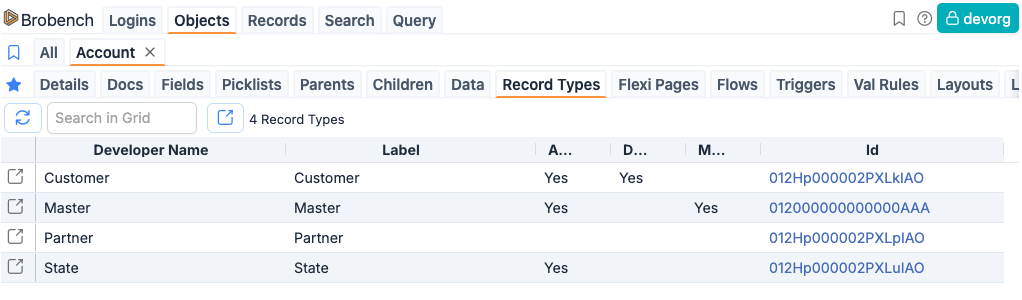
Right-click a row for more actions:
View in UI— opens the Record Type in Salesforce Setup.Edit Picklist Assignments— for any non-Master Record Type, lets you edit which Picklist values are available for it. See below.
Edit Picklist Assignments
This lets you view and edit which values of a Picklist or Multi-Select Picklist field are available for one specific Record Type, directly from the Record Types tab.
It uses the same underlying editor as Edit Recordtype Assignments on the Fields tab, just pinned the other way around: there, you pick one field and see all Record Types as columns; here, you pick one Record Type and choose which field's values to edit.

Opening the Editor
Right-click a non-Master Record Type row and select Edit Picklist Assignments from the context menu. Edit Picklist Assignments is not available for the Master Record Type, since all values are always available for it.
This opens a dialog titled Edit Picklist Assignments - <Record Type Name>. Since the Record Type is already fixed, use
the Select Picklist dropdown to choose which Picklist or Multi-Select Picklist field's values you want to view or
edit. The grid then shows a Matrix Grid with Picklist Values as rows and a single column for this Record Type.
Editing Assignments
Each cell shows the assignment status — Unassigned, Assigned, or AssignedDefault (only one value can be the
default for a Record Type) — and can be changed the same way as
in Edit Record Type Assignments: double-click to toggle, use the
toolbar buttons, or right-click for bulk options.
The right-click menu here has the same options
as Edit Record Type Assignments, except Copy from Record Type — since
only one Record Type column is shown, there's nothing to copy from.
Preview, Import/Export, and Saving
Preview, Export/Import, and Save all work the same way as
in Edit Record Type Assignments, scoped to this one Record Type. Unsaved changes are
kept in memory per field, so you can switch the Select Picklist dropdown to a different field and back without losing
your edits — Save persists unsaved changes across every field you've touched in the dialog, not just the one currently
shown.