Fields
The Fields tab shows all fields on the selected Object, and lets you search, filter, create, clone, edit access, and
delete fields, along with a Field Details panel with everything you might need to know about the selected field (s).
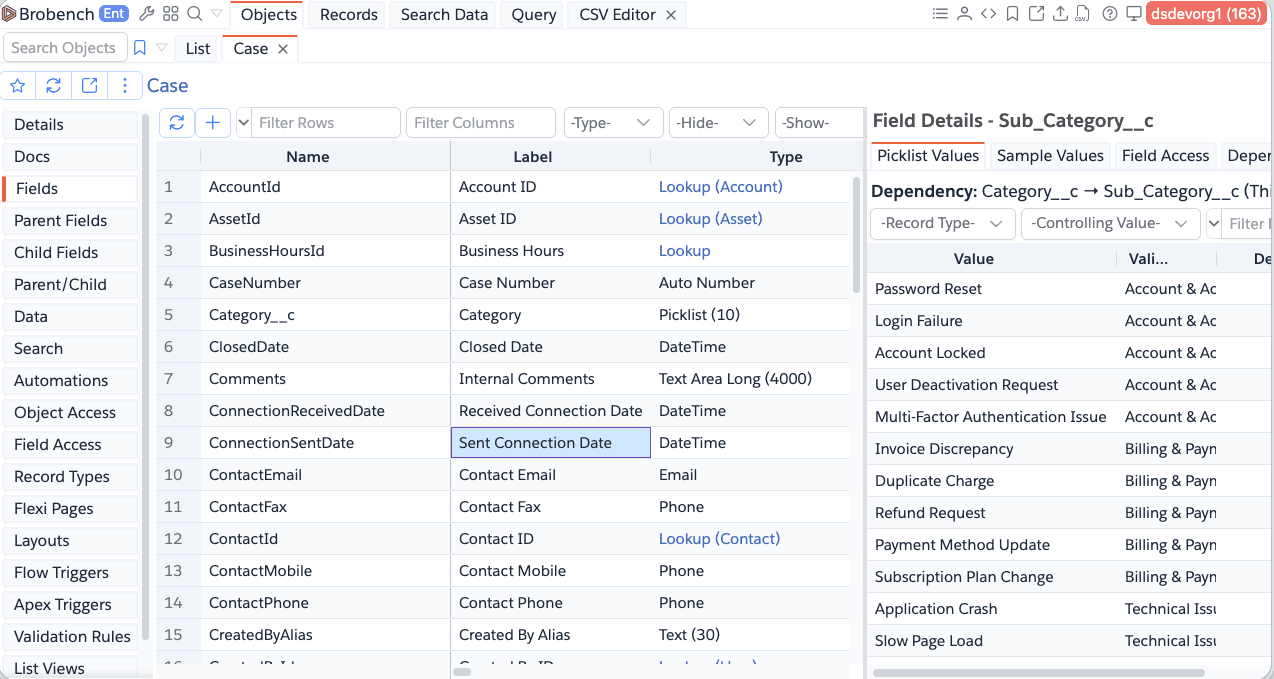
Layout
The tab is split into two panes:
- Left — the Fields grid, one row per field, with columns like Name, Label, Type, Required, Access, etc.
- Right — the Field Details panel for the selected field (s), with tabs that appear based on what's selected:
Details,Picklist Values,Formula,Rollup Formula,Lookup Filter,Sample Values,Field Access, andDependency Analysis. Select one or more fields in the grid to populate this panel.
Search & Filters
Use the search box to search by Field Name or Label. In addition, three filter dropdowns in the toolbar let you narrow down the grid further. All three can be combined at the same time.

| Filter | Behavior |
|---|---|
Type | Allows to filter fields by various data types |
Show | Allows to filter fields by various special cases like Required Fields, History Tracked Fields etc., |
Hide | Allows to hide fields for quick negation. For ex., hide System/Formula fields |
For example, selecting Picklist in -Type- and Dependent Picklists in -Show- narrows the grid to only Picklist
fields that are dependent (child) picklists.
Toolbar Actions
- Add (
+) — creates one or more new fields. See Bulk Create Fields and Create Fields with AI. - View in UI (external-link icon) — opens the standard Salesforce Setup Fields page for this object.
- More Actions (
⋮menu) —Do Quick Field Analysis— quick usage/data profiling for a field.View All Picklist Values— see View All Picklist Values.Preview Picklists Dependency— see Preview Picklists.View Fields Summary— see Fields Summary.Copy Object Summary— copies a Markdown summary of the object and its fields (name, type, access) to the clipboard.View Object JSON— opens the full object metadata as JSON.
Right-Click (Context Menu)
Select one or more fields and right-click for more actions:
View in UI— opens the field in Salesforce Setup.Formula Spy— for a selected formula field. See Formula Spy.Edit Dependency— for a custom dependent (child) picklist field. See Edit Picklist Dependency.Edit Record Type Assignments— for a Picklist or Multi-Select Picklist field, lets you edit which Record Types each picklist value is assigned to. See Edit Recordtype Assignments.Edit Access— see Field Access Editor.Delete Fields/Clone Fields— see Clone Fields. Only custom fields can be deleted or cloned.Add to Record Preview Fields— adds the selected field (s) to this object's Record Preview fields.Copy Assubmenu — copies the selected fields in a ready-to-paste format:Copy Object SummaryCopy as SOQL— aSELECT ... FROM <Object> LIMIT 100query with the selected fields (addsIdautomatically).Copy as Apex— an object constructor snippet with the selected fields set tonull.Copy as Lwc Import—@salesforce/schemaimport statements for the selected fields.Copy as Lwc Get Record— the same imports wired into agetRecordwire adapter snippet.