Edit Record Type Assignments
This feature lets you view and edit which Record Types a Picklist or Multi-Select Picklist value is available for.

Opening the Editor
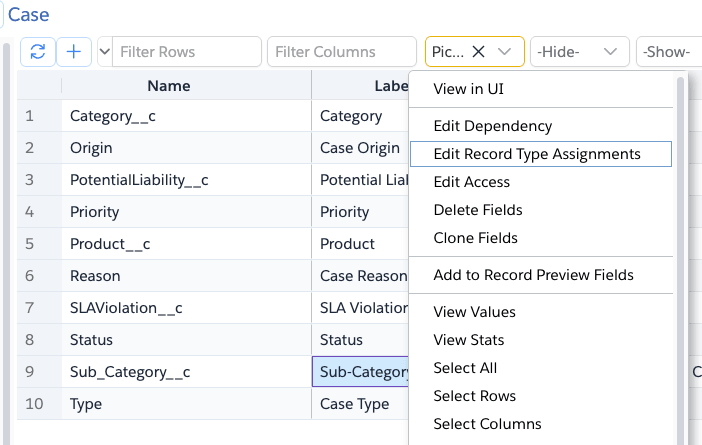
In the Object Fields tab, right-click on a Picklist or Multi-Select Picklist field and select
Edit Record Type Assignments from the context menu.
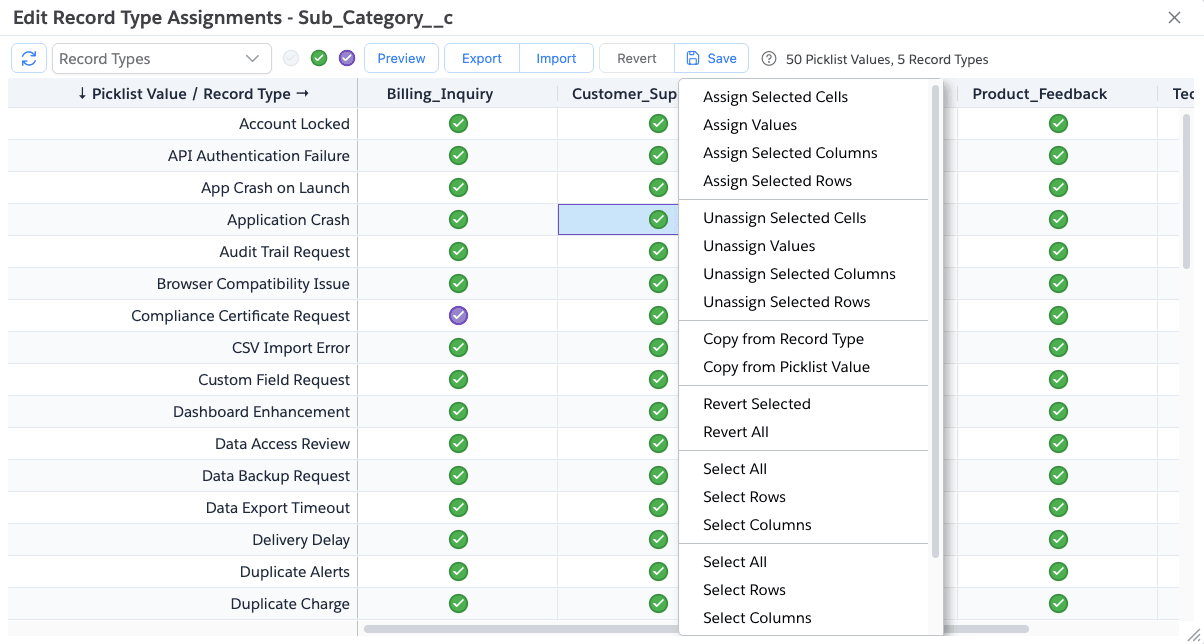
This opens a dialog titled Edit Record Type Assignments - <field> showing a Matrix Grid with Picklist Values as rows
and Record Types as columns. The Master Record Type is not shown as a column, since all values are always available for
it.
Then it opens the below dialog.
Filtering
You can narrow down the grid to specific Record Types using the Record Types filter in the toolbar.
Editing Assignments
Each intersecting cell shows the assignment status:
Unassigned— the value is not available for that Record Type.Assigned— the value is available for that Record Type.AssignedDefault— the value is available and is the default value for that Record Type. Only one value can be the default per Record Type — setting a new default automatically clears the previous one.
You can change assignments in a few ways:
- Double-click any cell to toggle between
AssignedandUnassigned. - Select one or more cells, rows, or columns and click the
Unassigned/Assigned/AssignedDefaulticon buttons in the toolbar. - Right-click for more options which allow you to change assignments in bulk.
Changed cells are highlighted so you can see what has been modified.
Context Menu
If you right-click on the grid, it shows a menu with the following options:
| Menu Item | What it does |
|---|---|
Assign Selected Cells | Sets only the currently selected cell(s) to Assigned. |
Assign Values | Opens a dialog where you can type/paste a list of Picklist Values, which are then assigned for the selected Record Type column(s). |
Assign Selected Columns | Sets every cell in the selected Record Type column(s) to Assigned, regardless of which cells were selected. |
Assign Selected Rows | Sets every cell in the selected Picklist Value row(s) to Assigned. |
Unassign Selected Cells | Sets only the currently selected cell(s) to Unassigned. |
Unassign Values | Same as Assign Values, but sets the matched Picklist Values to Unassigned instead. |
Unassign Selected Columns | Sets every cell in the selected Record Type column(s) to Unassigned. |
Unassign Selected Rows | Sets every cell in the selected Picklist Value row(s) to Unassigned. |
Copy from Record Type | Lets you pick another Record Type and copies its assignment pattern into the selected column(s). |
Copy from Picklist Value | Lets you pick another Picklist Value and copies its assignment pattern into the selected row(s). |
Revert Selected | Reverts unsaved changes for the currently selected cells/rows/columns back to their last saved value. |
Revert All | Reverts all unsaved changes in the grid back to their last saved values. |
Select All | Selects every cell in the grid. |
Select Rows | Selects all rows in the grid. |
Select Columns | Selects all columns in the grid. |
Preview
Click Preview to see how the picklist will render for each Record Type, based on your current (including unsaved)
assignments.
Import / Export
Use the Export menu to export the current assignments either as a Matrix (one column per Record Type) or as a List
(one row per assigned combination) CSV file.
Use Import to load assignments back from a CSV file in either the Matrix or List format. Assignment values in the file
can be Assigned, Unassigned, or AssignedDefault. You can choose to only apply changes for the Picklist Values
present in the import file, or apply the import as a full replacement.
Saving
Once you are happy with your changes, click Save. Brobench groups your changes by Record Type and updates each
affected Record Type's metadata, showing a progress indicator when many Record Types are affected. Click Revert All first if you want to discard changes and start over before saving.