Looped Query
Looped Query feature accepts Main Query Template and Input Dataset and runs the Main Query in repeated manner feeding batch of input records which can be used as variables.
How it works
- It accepts an input (it could be CSV File or SOQL Query)
- Creates batches out of Input Dataset
- Feeds the batch of records to construct new SOQL, runs the SOQL and gathers matched records
- Takes next batch of records and continues at step 3 again till batches are exhausted
- Gathers all results from all loop executions and shows the result.
Use cases
This can be used for the following purposes.
-
Let's say you have a large object whose SOQL query is timing out due to size. You can create an input with date ranges and feed each range into the main SOQL to run for a short duration, which mostly likes runs without timing out.
-
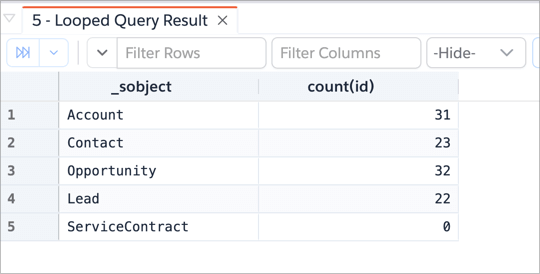
Let's say you want to get a record count of various objects for a duration. For example, count of records created in Account, Contact, and a few other objects on a daily basis. You can feed those Sobject Names as input, constrcut new SOQL Query and run.
Usage
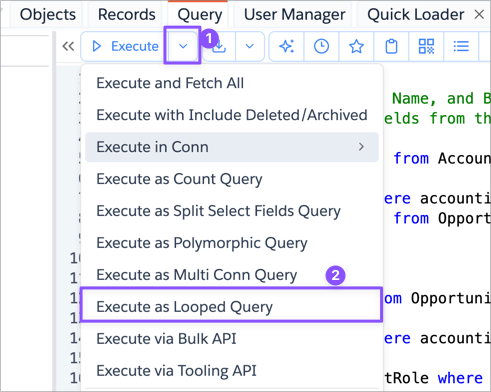
This feature can be invoked by clicking on the dropdown next to Execute button and selecting Execute as Looped Query
It opens the below dialog with the currently selected query from the editor or previously entered query, pre-filled in the input box.
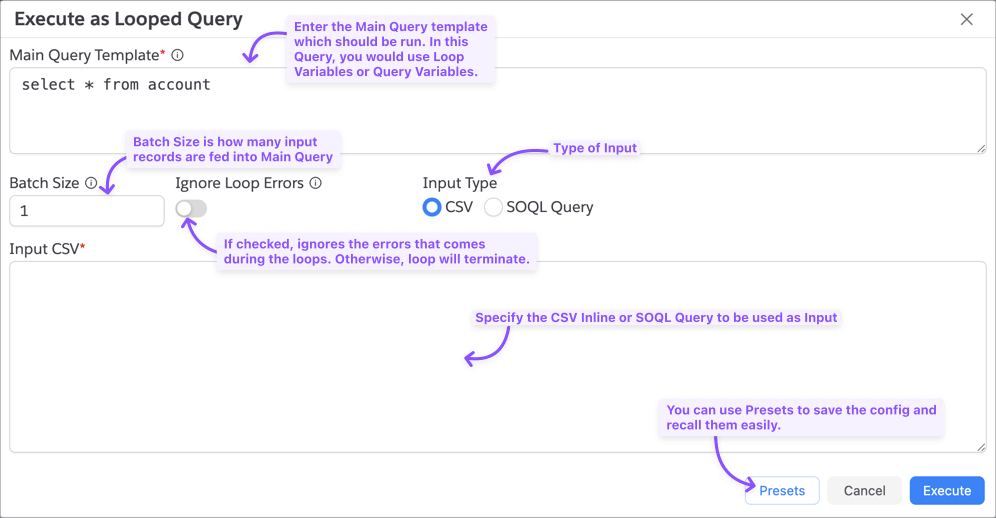
Specify the Main Query Template, Input Data and click Execute.
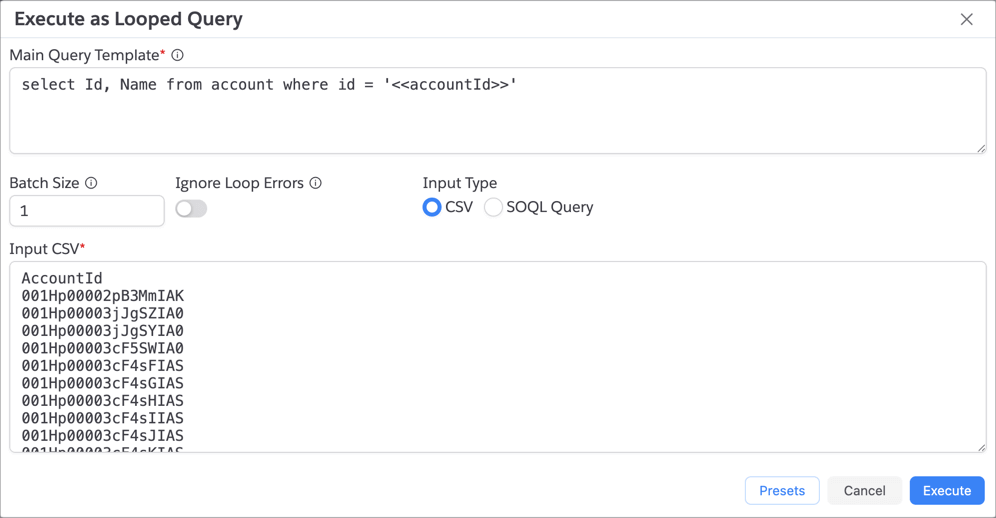
App will run the Query in loops and gathers the results.
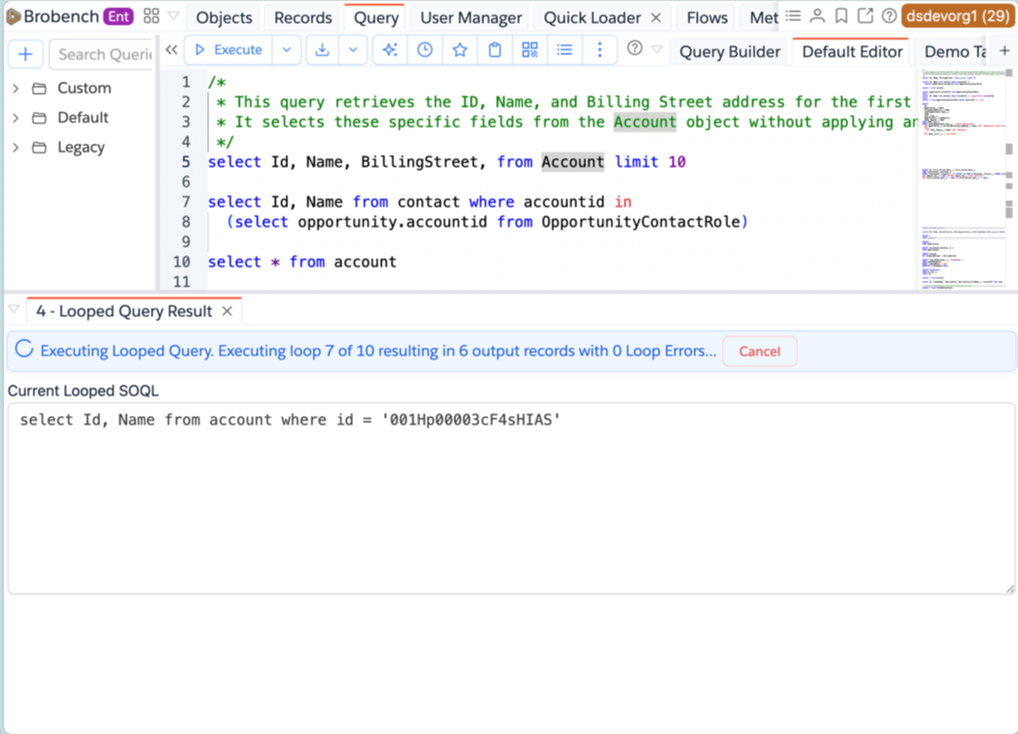
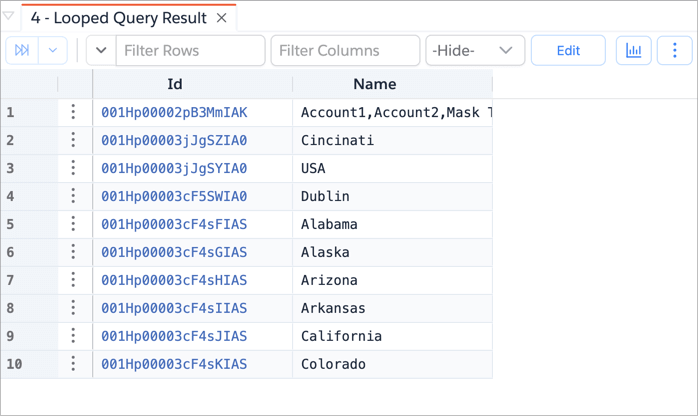
Finally shows the combined results.
Loop Variables
You can use any variable from input in the SOQL Query Template between << >> tags. For ex., <<accountId>>
or <<sobjectName>> etc., Loop expressions are basically formulas so you can use any of the Brobench Formulas to create
the query text you’re looking for.
- You can also use Query Variables like
:varNamebut they’re supported only in where clause where as Loop Variables are supported in any part of the query. - Loop Variables are substituted statically so make sure you handle the single quotes appropriately
Batch Size
It’s important to set the correct batch size, which defaults to 1. Batch size decides how many input records are fed
into a Loop execution. If you’re feeding single record, then use the singular operators in your where clause, for
example Id = '<<accountId>>'. If you’re feeding multiple records, then make sure you use brobench formula to create
properly constructed In clause values, for example where id in (<<soql_in_string(accountId)>>)
Presets
Presets allow you to save the current configuration, including CSV Input, and use the configuration later point in time.

- Click on
New Presetto create new Preset - Click on
Load Presetto load previously saved preset config - Click on
Update Presetto update the preset with the current configuration - Click on
Delete Presetto delete a previously saved preset.
Examples
Query Object with Date Range
Let's say you have a big object, and you want to query records for a month but it is timing out but if you run a query for a small created date range like a day, it works fine. Now you can sit and run 30 queries, gather results into a final set or use Brobench Looped Query to save yourself time.
Main Query Template:
select Id, Subject, CreatedDate from Task where CreatedDate >= <<startDate>> and CreatedDate < <<endDate>>
Input CSV:
StartDate,EndDate
2025-01-01T00:00:00Z,2025-01-02T00:00:00Z
2025-01-02T00:00:00Z,2025-01-03T00:00:00Z
2025-01-03T00:00:00Z,2025-01-04T00:00:00Z
2025-01-04T00:00:00Z,2025-01-05T00:00:00Z
Result:
You should get the tasks which are created between 2025-01-01 and 2025-01-04.
Query Objects Record count
Let's say you want to get a record count of various objects periodically. Typicaly you would need to run each query, collect the count into an Excel file and share that result. With looped query, this is all done with a single click.
Main Query Template:
select {{$sobjectName}} sobject, count(id) from <<sobjectName>>
Input CSV:
SobjectName
Account
Contact
Opportunity
Lead
ServiceContract
Result: