Datagrid Grouping
Salesforce has many limitations when it comes to SOQL GROUP BY feature.
- You cannot group by if matched records produce more than 2000 groups. If so you will get error
EXCEEDED_ID_LIMIT: Aggregate query does not support queryMore(), use LIMIT to restrict the results to a single batch - You cannot group by certain field types (For ex., Formula Fields). See this Post for a full list of non-groupable field types.
Brobench allows you to work around these issues by fetching all data and do the group by locally. Brobench Local Group by has no limitations of field types or number of records (up to your system memory limit)
Group By Fields
- Run the SOQL to match all records that you want to use for grouping
- Fetch all records from the server into Datagrid (you can use Fetch More -> All Batches to fetch all records)
- Right-click on the field you want to group by and select
Group -> Add to Groups - App will group the records by the selected field.
- If you want to group by additional fields, follow the same steps and the app will further group by new fields.
Change Aggregate Function
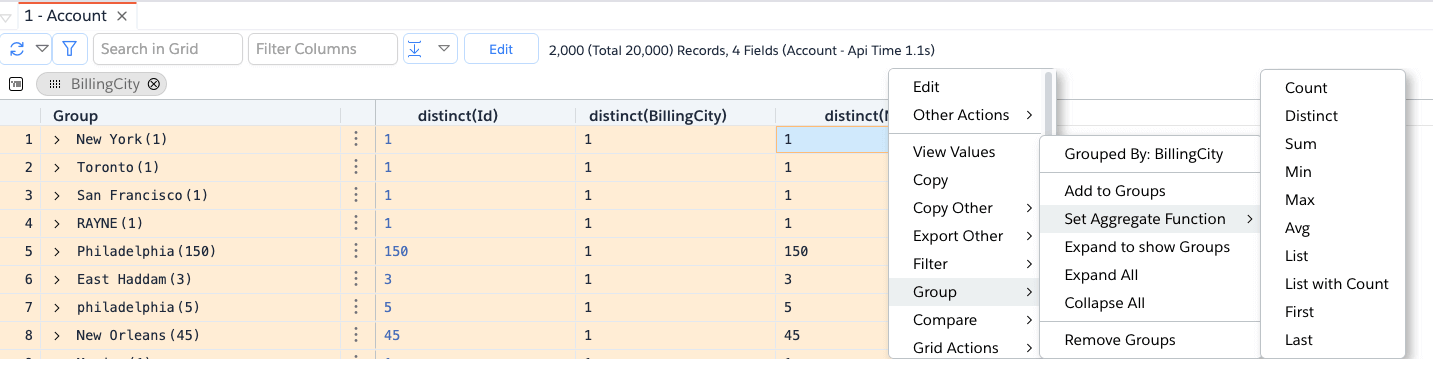
By default, it applies distinct function to Non-Grouped Fields. But you can change that by right-clicking on the field
and selecting
Group -> Set Aggregate Function -> <Function>.
Standard Aggregate Functions
Below are the available standard aggregate functions.
| Function Label | Name | Description |
|---|---|---|
Count | count | Number of records in the group which have non-blank for that field |
Distinct | distinct | Number of distinct non-blank values for that field in that group |
Sum | sun | Applicable for Number fields only. Sum of all the values in the group. Nulls are treated as 0 |
Min | min | Applicable for Number fields only. Minimum value of all the values in the group. Nulls are treated as 0 |
Max | max | Applicable for Number fields only. Maximum value of all the values in the group. Nulls are treated as 0 |
Avg | avg | Applicable for Number fields only. Average of all the values in the group. Nulls are treated as 0 |
List | list | Returns the distinct list of values in the group as comma separated list. |
List with Count | listWithCount | Returns the distinct list of values in the group as a comma-separated list along with the occurrence count. |
First | first | Returns the first value in the group |
Last | last | Returns the last value in the group |
Custom Aggregate Functions
Brobench provides many aggregate functions, which are sufficient most of the time. However, if your use case needs custom handling of records to produce an aggregated value, you can make use of Custom Aggregated functions.
Note that Custom Aggregated functions are created once and can be applied to any result set.
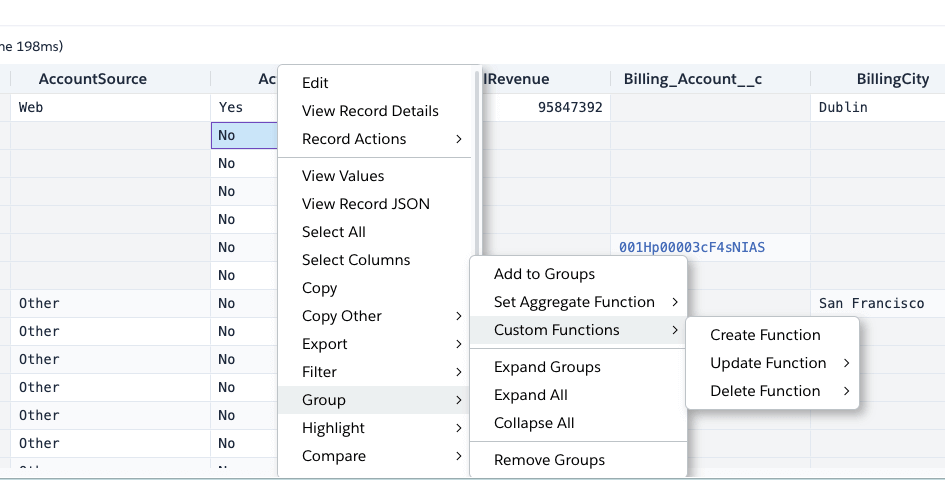
To create a new Custom Function, Right-click in the query grid -> Group -> Custom Functions -> Create Function
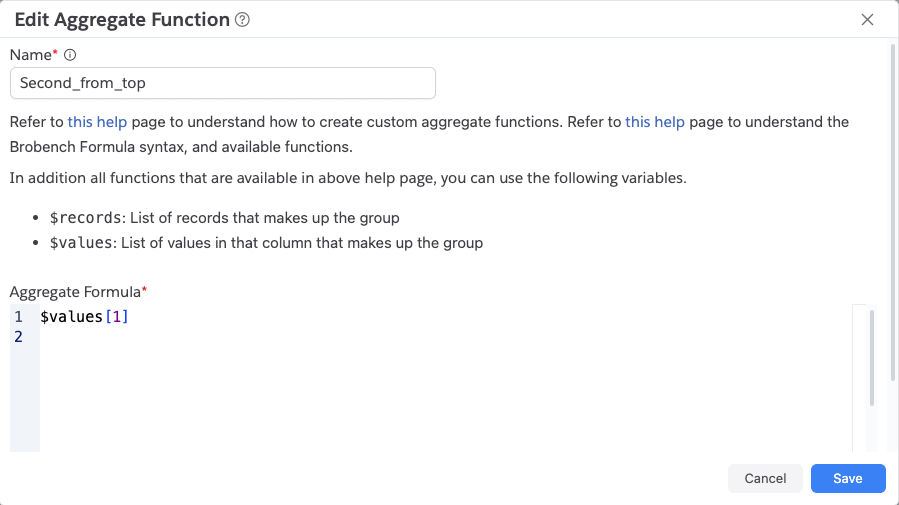
App will show the below dialog where you can enter the formula that will aggregate the data.
Datagrid Config
Let's say you want to query some data, apply grouping to some fields, set specific aggregate functions for some other fields you can do that via UI as explained above, but it is a lot of clicks. If you want to do that many times, it can be tedious.
That's why we provide Datagrid Config feature as part of the query. If you specify the config as part of the query,
app will apply that config automatically when you execute the data. Note that once it is applied, you can still do all
of the above changes on top of it if you want to like removing or adding more or changing aggregate functions.
Here is an example of how to specify that config.
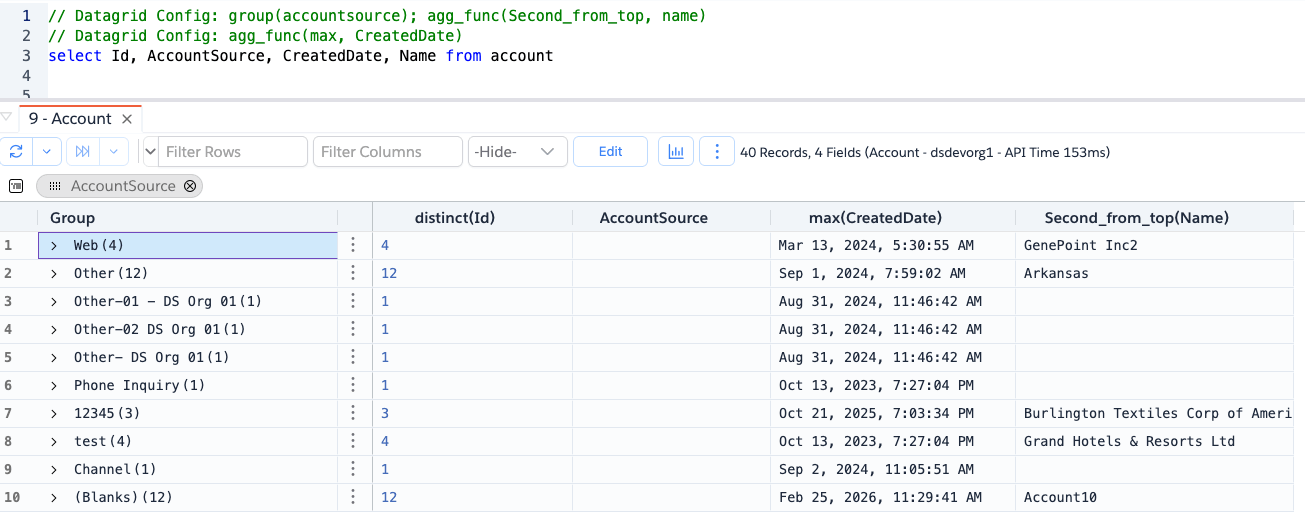
Syntax is as follows.
- Config comment starts with
Datagrid Config:keyword (case-insensitive), otherwise that line will be ignored - After that you specify various datagrid commands separated by
;(comma) - You can specify multiple config comments per query. Commands will be applied in that order
- To group fields, you can use
group(<Field Name>)command - To set aggregate function, you can use
agg_func(<Function Name>, <Field Name>). Function Name could be both standard functions or custom functions. If you are referring to Standard Aggregate Function, make sure you use the function API name, not label.
You can also specify config comments as part of your Saved Queries and the app will use them
Here are some examples.
// Datagrid Config: group(FiscalYear); group(FiscalQuarter)
// Datagrid Config: agg_func(max, Amount)
select Id, Name, FiscalYear, FiscalQuarter, Amount from Opportunity where createddate >= last_n_years:3

// Datagrid Config: group(accountsource); agg_func(Second_from_top, name)
// Datagrid Config: agg_func(max, CreatedDate)
select Id, AccountSource, CreatedDate, Name from account
Copy Group Summary
To export group the summary, right-click in the datagrid and select Copy Other -> Copy Group Summary as CSV or
Copy Group Summary as Excel.
Export Group Summary
If you do standard Datagrid Export it will export the source records and not the
aggregated summary. To export
the summary, right-click in the datagrid and select Export Other -> Export Group Summary as CSV or
Export Group Summary as Excel.
Examples
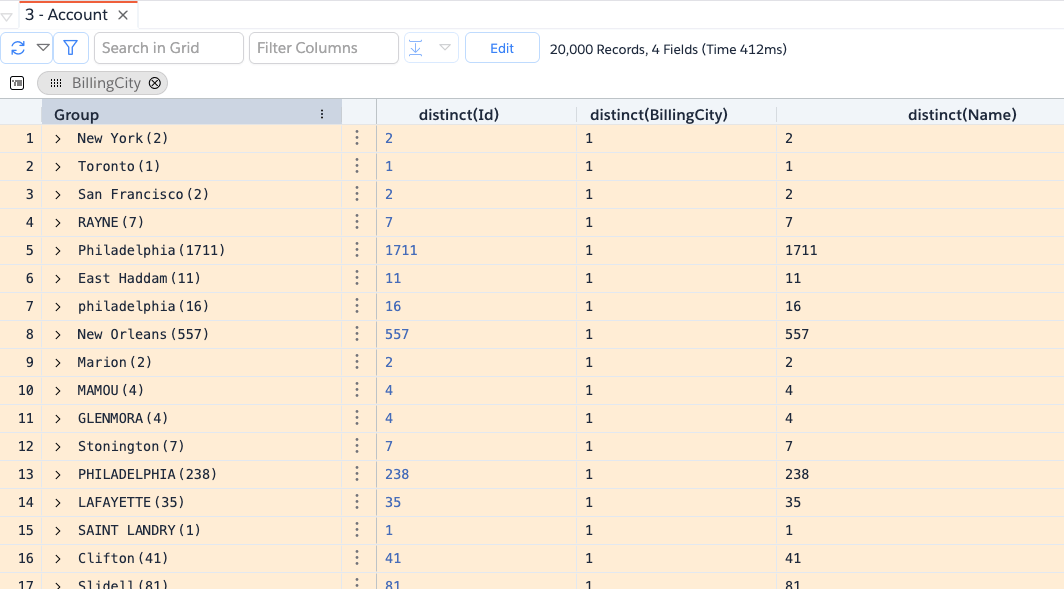
Group by Account Billing City
We have this soql select BillingCity, count(id) from Account group by BillingCity which throws error
EXCEEDED_ID_LIMIT: Aggregate query does not support queryMore(), use LIMIT to restrict the results to a single batch
As a workaround, let's run query select Id, BillingCity, Name from Account (make sure you select all fields you want
to group by and create
aggregate summary of) and fetch all records into Datagrid.
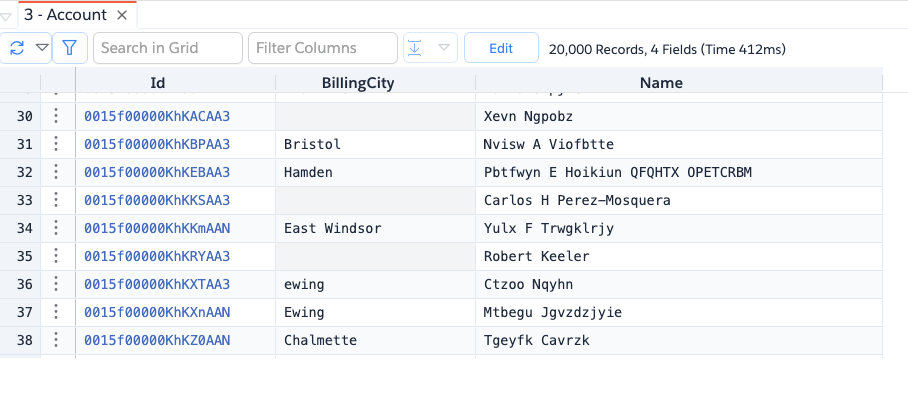
Right-click on Billing City field and select Group -> Add to Groups
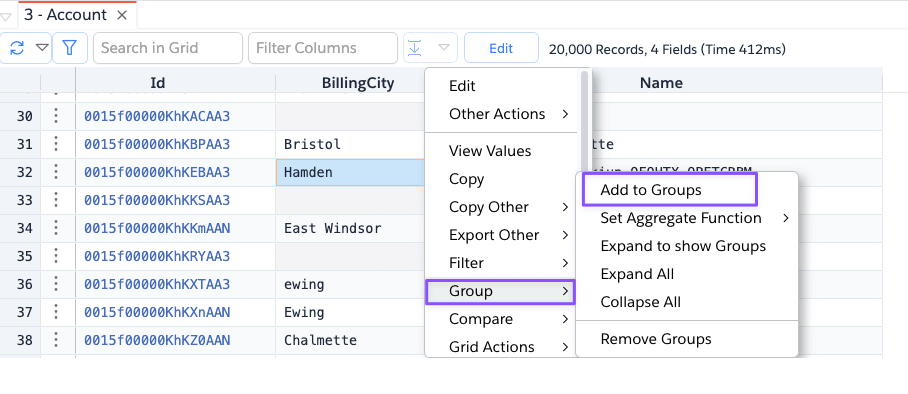
App shows the summary of the grouped records.