Clone Fields
Clone Fields lets you clone one or more custom fields from the current object into another target object in a
single flow.
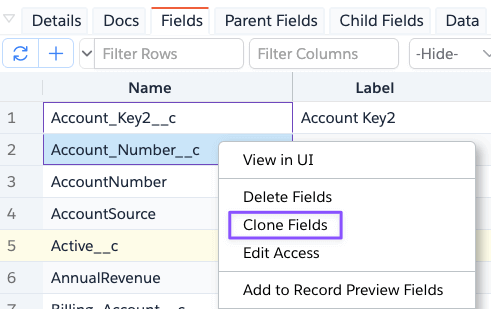
How to Launch
- Open
Objectsand select an object. - Go to the
Fieldstab. - Select one or more fields.
- Right-click and choose
Clone Fields.
What It Does
When you run Clone Fields, Brobench:
- takes the selected custom fields
- reads latest field metadata from Salesforce
- opens the
Create Fieldsdialog in copy mode - pre-fills field definitions from the selected source fields
- pre-fills Field Access using union access from selected fields
This allows you to review/edit before creating fields in target object.

Key Rules
- Only custom fields can be copied.
- You must select at least one field.
- Target org connection must be writable (not read-only).
- If metadata read fails for some fields, app continues with successfully read fields.
Clone Flow
Step 1: Select Source Fields
Select the custom fields you want to clone from source object.
Step 2: Choose Target Object
In the Clone Fields dialog, select the target object where fields should be created.
Step 3: Review Field Definitions
Review or adjust field details before create:
- Type
- Label / API Name
- Description / Help Text
- Type-specific properties (length, scale, picklist values, etc.)
Step 4: Review Field Access
Use Field Access to verify profile/permission-set access before creating fields.
Access is initialized as union of selected source fields:
- if any selected field grants Read/Edit for a profile/permset, cloned config grants it
- you can still modify access before final create
Step 5: Create Fields
Click Create Fields to deploy fields to target object.
Notes
- Field names/types still need to be valid for target object context.
- You can remove or edit any copied row before creating.
- For field details, see Bulk Create Fields.
- For access behavior, see Field Access Editor.