Field Access Editor
Field Access Editor is used to specified access for one or more fields. It lets you assign Read / Edit access for
Profiles and Permission Sets in one place.
This feature is used in:
Overview
When you click on the Field Access in any of those places, the app shows you the dialog below where you can configure
field permissions.
It consists of Header which contains various filter options, Permsets which allows you to configure Permission Set
access and Profiles which allows you to configure Profiles access
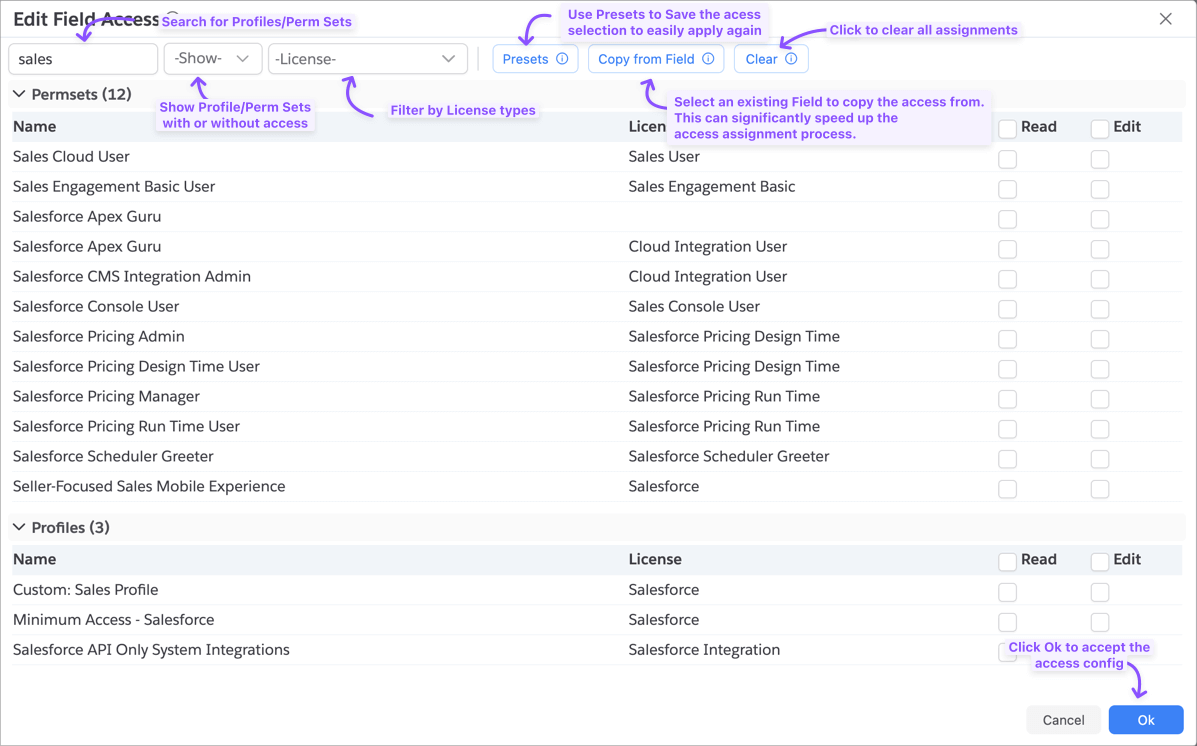
- The same field access configuration applies to all fields in the current batch.
- You can configure access for both Profiles and Permission Sets.
- By default, access is granted to the System Administrator profile.
Filtering Permset/Profiles List
App provides you three ways to filter the list to show only relevant profiles/permission sets.
- Search Box: Type in the search box to filter by name.
- Access Filter: Allows you to filter to show only those with access or without access.
- License Filter: Allows you to filter by Profile or Permission Set license type. If you select more than one, then it shows the list which matches any one of those.
If you specify more than one filter option, then the app applies all the filters to show you the results that match all filter conditions.
Copy Access from Existing Field
Most of the time, you would want to configure access similar to an existing field in the object. To enable that, the
Copy from Field button allows you to do just that, saving you significant time and effort.
When you click on the button, the app shows you the dialog below with the list of fields. Select a field and click Ok
to copy access permissions from that field.

App doesn't remove the access which is already configured before you click on the button. If you want to have just that
field's access, Clear the access first and then copy the access.
Access Presets
Let's say you frequently create fields with similar access permissions. For example, a field for the legal team which
allows Read for all internal Profiles and Edit Legal profiles.
If you have a lot of Profiles/Permission Sets in your org, then configuring access every time can be tedious and error-prone in selecting just that list. This is where Access Presets come to the rescue.
Creating Presets
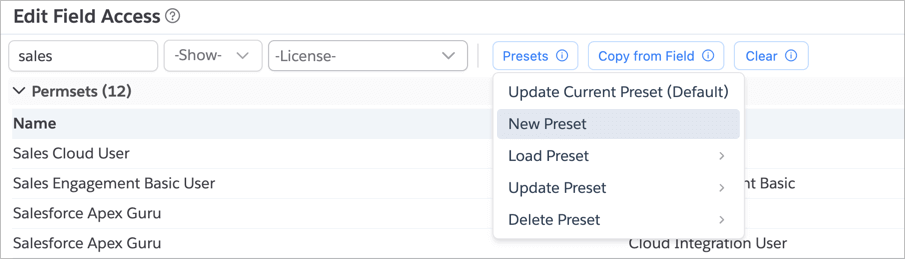
To create a Preset, first configure the access permissions as you want. Then click on the Presets -> New Preset button
and specify a name. Now the app will save the current access configuration against that name. You can create as many
presets as you want with different names.
Don't worry about saving access for Profiles/Permission Sets that might not be there in all orgs. When applying the Preset, the app will ignore the access for Profiles/Permission Sets not found in the current org.
Applying Presets
To apply a Preset, click on the Presets -> Load Preset button and select the Preset you want to apply. The app will
apply the access.
App will never remove the access which is already configured before you click on the button. If you want to have just
that Preset's access, Clear the access first and then load the Preset.
Updating a Preset
If you have a preset, and you want to update it with the current access configuration, click on the
Presets -> Update Preset button and select the Preset you want to update. If you’ve already loaded a preset, then
you can also click on the Presets -> Update Current Preset button to update the currently loaded preset.
Deleting a Preset
To delete a Preset, click on the Presets -> Delete Preset button and select the Preset you want to delete.
Clear Access
Clicking on the Clear button will remove all the access permissions configured so far. This is useful if you want to
reset and start over.