Query Templates
Query Templates feature allows you to configure custom reusable soql statements with dynamic placeholders. These snippets show up as Content Assist suggestions. When selected, the app inserts a specified template into the editor and allows you to change placeholder values. Brobench comes with many standard snippets, so you can get started immediately.
Template Usage
Dynamic placeholders are indicated by ${n} or ${n:Default Value} where n is an integer starting with 1
and Default Value is the default value for that placeholder. Value 0 indicates final cursor
position after all dynamic placeholders are navigated.
When a snippet is inserted into the editor, it’ll navigate you from placeholder position 1 and onwards. To go to the
next placeholder, click Tab. You can also escape (esc) to abandon dynamic placeholders.
For ex., if this is the snippet content select Id${2} from ${1} where ${0};, when inserted into editor it’ll look
like below

- First, it’ll focus on the cursor after
fromkeyword as that’s placeholder${1}. You can enter object name and click tab - Next, it’ll focus cursor next to
Idfield. If you want to add more fields, type those fields. Otherwise, just pressTab - Next (and finally), it’ll focus next to
wherekeyword and concludes the dynamic placeholders as this is the final cursor position with value${0}
List Query Templates
Click on the Query Templates icon (see Overview for location of the icon). When clicked, it shows
the following dialog.
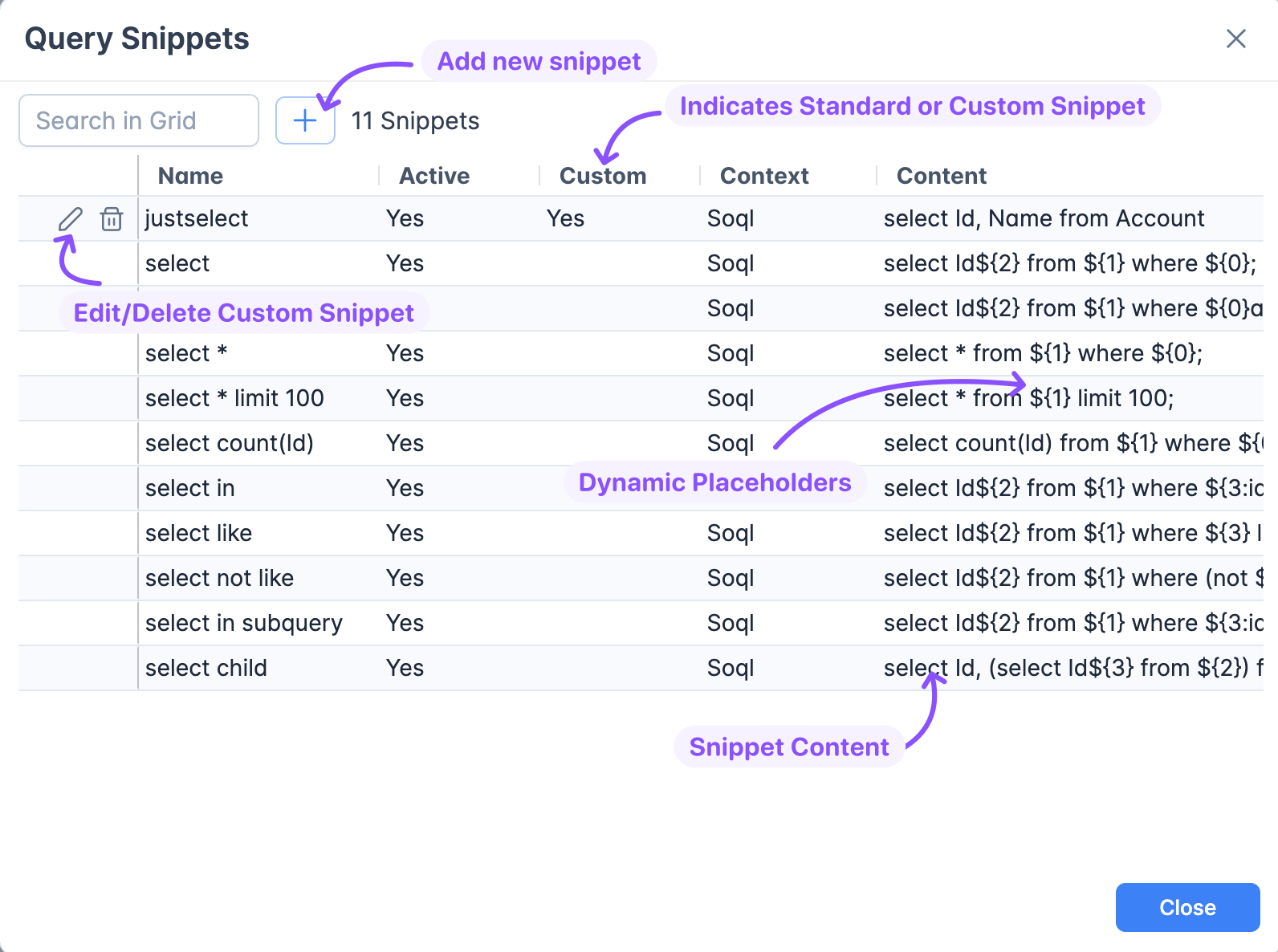
It shows both standard snippets and custom ones. Standard snippets can’t be edited or modified.
Add/Edit Query Template
Click on + icon in the toolbar to add new snippet or click on Pencil icon next to a custom snippet to edit it. It
shows the dialog where you can enter details. The following table shows the fields shown in the dialog.
| Field | Type | Description |
|---|---|---|
| Name | String (100) | Name of the snippet which shows up in the Content Assist list of suggestions. Keep it brief and unique. |
| Context | Picklist | The context where this snippet should be used. Depending on the context, suggestions are filtered. |
| Description | Text Area (1000) | Any description to help you understand the snippet |
| Active | Boolean | If Snippet is inactive, it will not be shown in the suggestions |
| Content | String (4000) | Content of the snippet. As outlined in Snippet Usage you can include dynamic placeholders with optional default value |
Delete Query Template
You can delete the snippet by clicking on Trash icon next to custom snippet. App will delete the snippet after
confirmation.